Plans, credits, and billing
Find your plan, see your credit usage and billing cycle, and know who can manage billing.
Check which plan your workspace is on, how many credits you have used, and where billing is managed.
What you need
- A signed-in account and access to a workspace.
- For billing changes: permission to manage billing in that workspace.
Steps
See your plan and credits
-
Choose the plan card at the bottom of the sidebar. It shows your plan name, a usage percentage, and credits left.
-
Account & Settings opens. The plan card shows your plan, Credit Usage, and Remaining. Billing Cycle shows when the cycle started and ended and when usage resets.
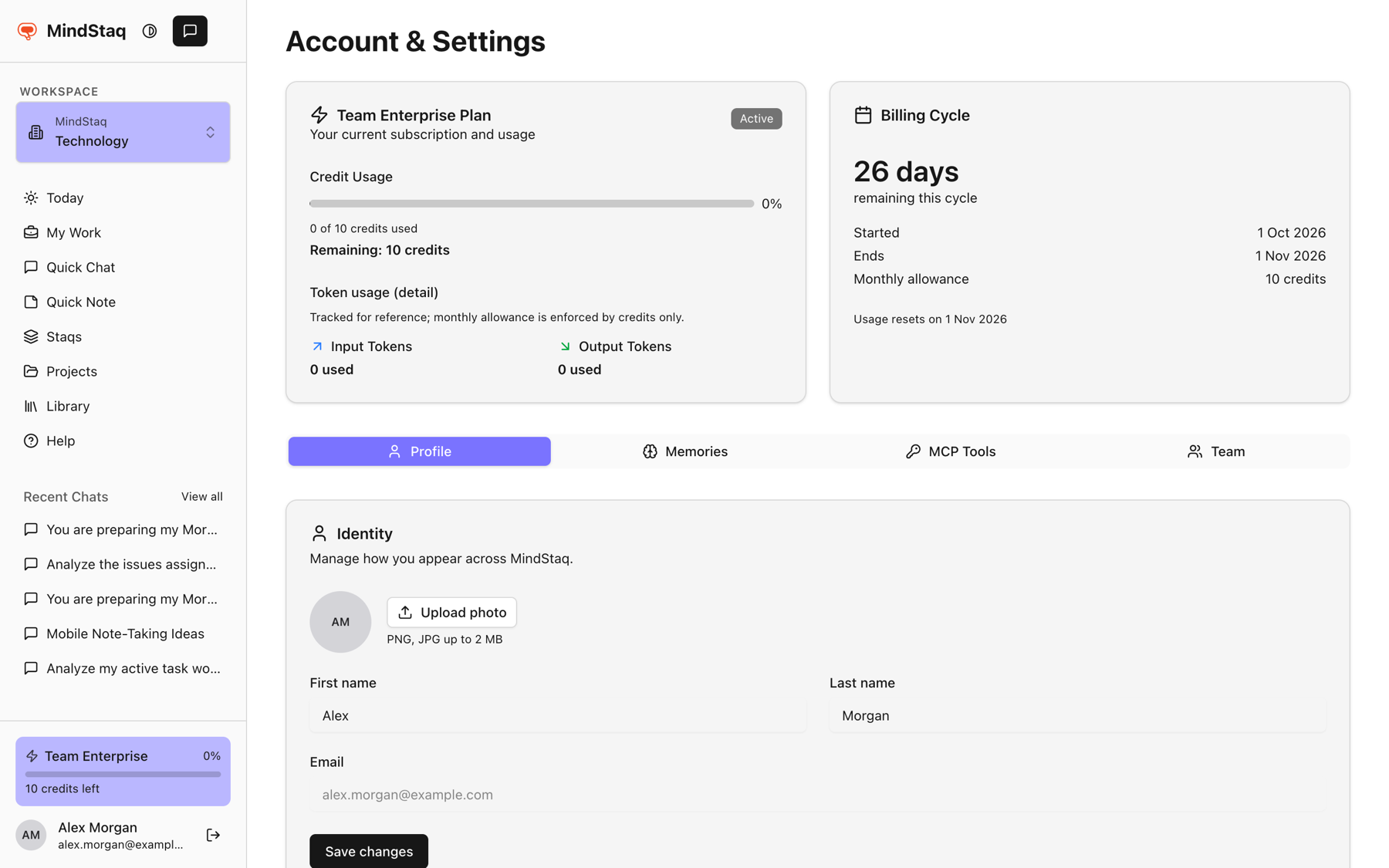
The plan labels the product shows are Solo Free, Solo Plus, Team Basic, Team Professional, and Team Enterprise. Your plan belongs to the workspace you are in, so switch workspace to see another workspace's plan.
Manage billing
- Open the Billing tab. It is shown only to people who can manage billing, and only when billing is shown in your environment.
- Payment & Invoices shows your plan, licences, total, next billing date, and card on file. Billing history and Update open the billing provider.
- Under Available Plans, choose Change plan on a plan card and confirm.
Expected result
You can see your current usage and cycle dates. After a plan change you see a confirmation, or a Scheduled downgrade notice that keeps your plan until the period ends (Cancel Downgrade undoes it).
Tips
- Token counts are shown for reference; the monthly allowance is enforced by credits.
- How credits are spent by AI use is explained in Smart model routing and credits.
- Prices and what each plan includes are not listed here; see the plan cards in the Billing tab.
Troubleshooting
- No Billing tab: you may lack permission. Others see: "Only workspace admins and organization admins can manage billing for this workspace." Ask an admin.
- Subscription canceled or expired: use Resume Subscription or Reactivate subscription on the Billing tab.
- Out of credits or AI will not reply: see Troubleshoot AI sessions.
- Billing looks wrong: contact support and say it is about billing.
Related guides
- Understand smart model routing and creditsLearn how Auto picks a tier, how credits are used, and what happens when your allowance runs out.
- Troubleshoot unavailable models, quota, file processing, and session failuresFix the most common reasons an AI session will not send, stops, or cannot read your files.
- Update your profile and switch workspacesChange your name, photo, and password, and move between your workspaces.
Email [email protected] and tell us what you were trying to do.
Email supportSpotted a mistake or something out of date? Report a problem with this guide. No email app? Write to [email protected] and name this guide.