Understand smart model routing and credits
Learn how Auto picks a tier, how credits are used, and what happens when your allowance runs out.
See how MindStaq chooses the AI effort for each message and how to check your credit usage.
What you need
- A signed-in account in a workspace.
Steps
How routing works
-
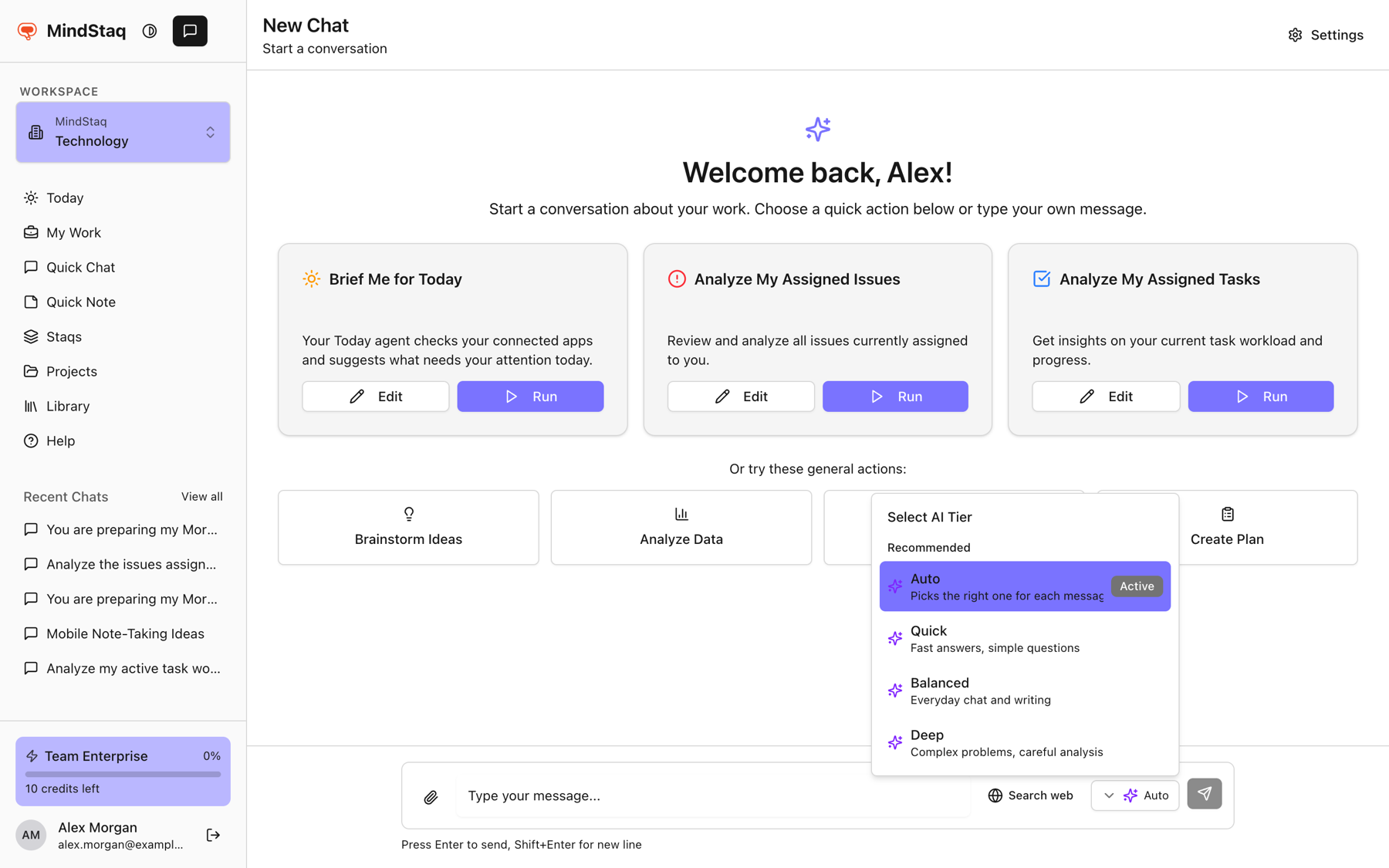
With Auto, the assistant decides for each message how much effort it needs, between Quick, Balanced, and Deep. Simple questions stay on Quick; larger writing, planning, or research moves up.
-
If you choose Quick, Balanced, or Deep yourself, the chat stays on that tier.
-
On free plans, Auto can choose Quick or Balanced but not Deep, and it leans to Quick when your allowance is nearly used up.
-
Using tools that read or change your work in MindStaq raises the minimum to Balanced.
Check your credits
-
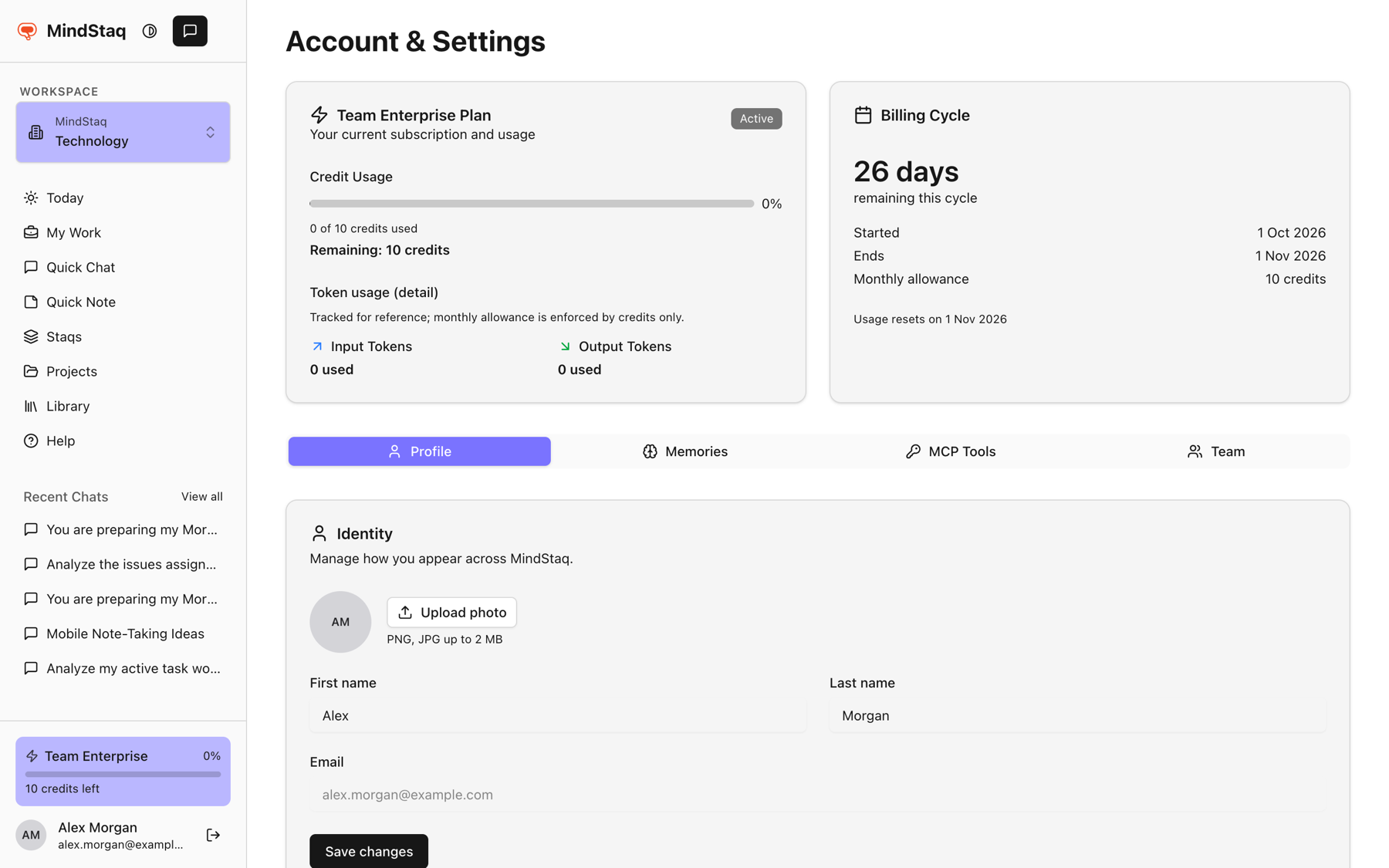
Look at the plan card at the bottom of the sidebar: plan name, percentage used, and credits left.
-
Choose it to open Account & Settings, which shows Credit Usage, Remaining, and Billing Cycle with the date usage resets.
Expected result
You know which tier answered and how much allowance remains. Allowance is based on credits, not on a separate token limit; token counts shown there are for reference.
Tips
- Use Quick for simple jobs to keep credits for bigger ones.
- Credits are counted against the model that actually answered, which can differ from the first choice if a fallback was used.
- Plans and billing are covered in Plans, credits, and billing.
Troubleshooting
- "Your AI credit allowance has been reached." The message box is disabled until the allowance resets or your plan changes. Some workspaces may see extra detail about overflow or a shared credit pool.
- Unsure which tier answered. Check the tier button; Active marks the selection.
Related guides
- Choose Quick, Balanced, or DeepPick the right AI tier for the job, or let Auto choose for each message.
- Plans, credits, and billingFind your plan, see your credit usage and billing cycle, and know who can manage billing.
- Troubleshoot unavailable models, quota, file processing, and session failuresFix the most common reasons an AI session will not send, stops, or cannot read your files.
- Use web search and deep researchLet the assistant search the web for a message, and use the Deep tier for research that needs careful analysis.
Email [email protected] and tell us what you were trying to do.
Email supportSpotted a mistake or something out of date? Report a problem with this guide. No email app? Write to [email protected] and name this guide.