Update your profile and switch workspaces
Change your name, photo, and password, and move between your workspaces.
Keep your profile current and move between workspaces without signing out.
What you need
- A signed-in account.
Steps
Update your profile
-
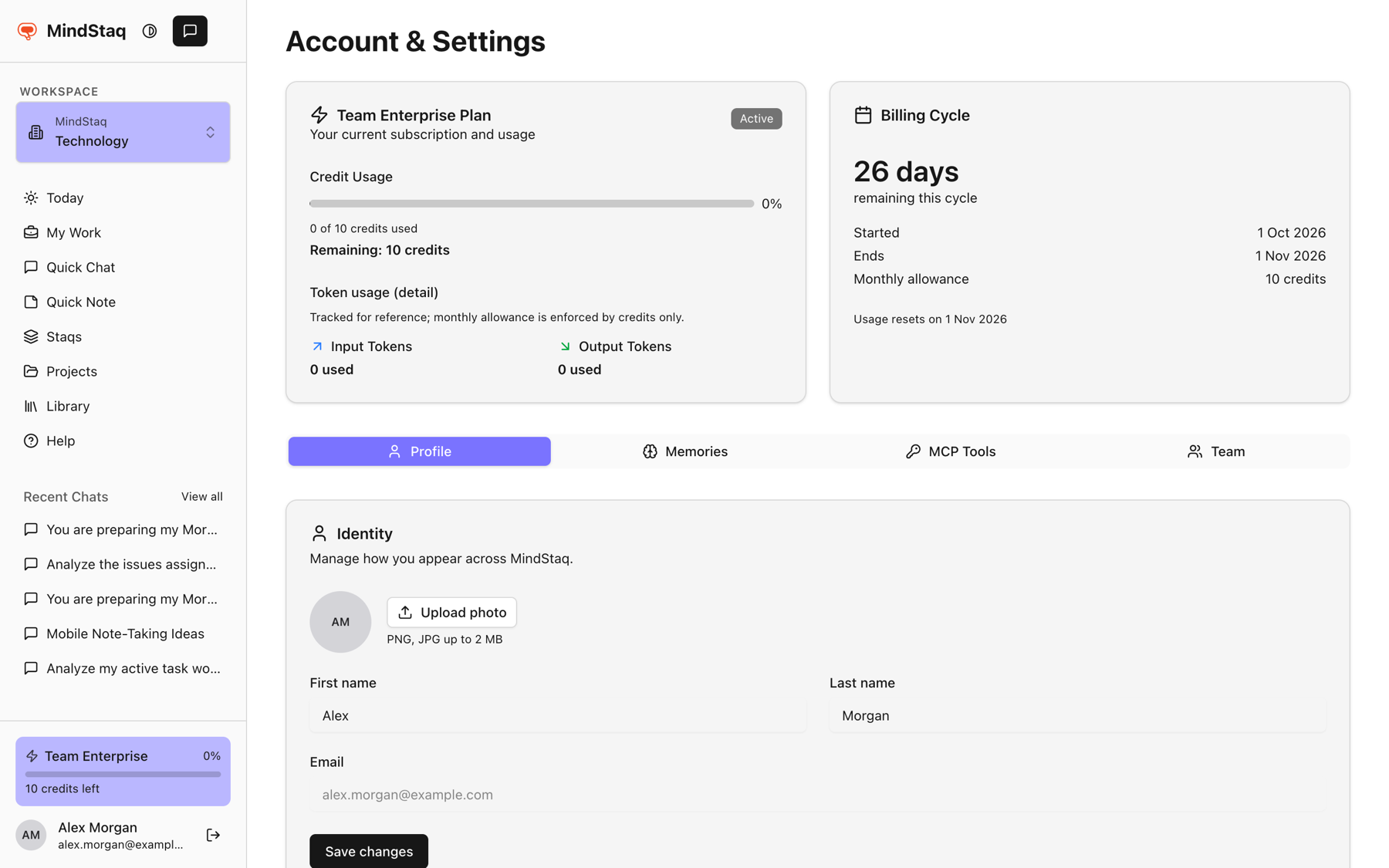
Choose the plan card at the bottom of the sidebar to open Account & Settings. The Profile tab opens first.
-
In Identity, choose Upload photo to add a picture, or edit First name and Last name. Your email is shown but cannot be edited here.
-
Choose Save changes.
Change your password
- In Password, enter New password and Confirm new password. It must be at least 8 characters with an uppercase letter, a lowercase letter, and a digit.
- Choose Update password.
Switch workspace
-
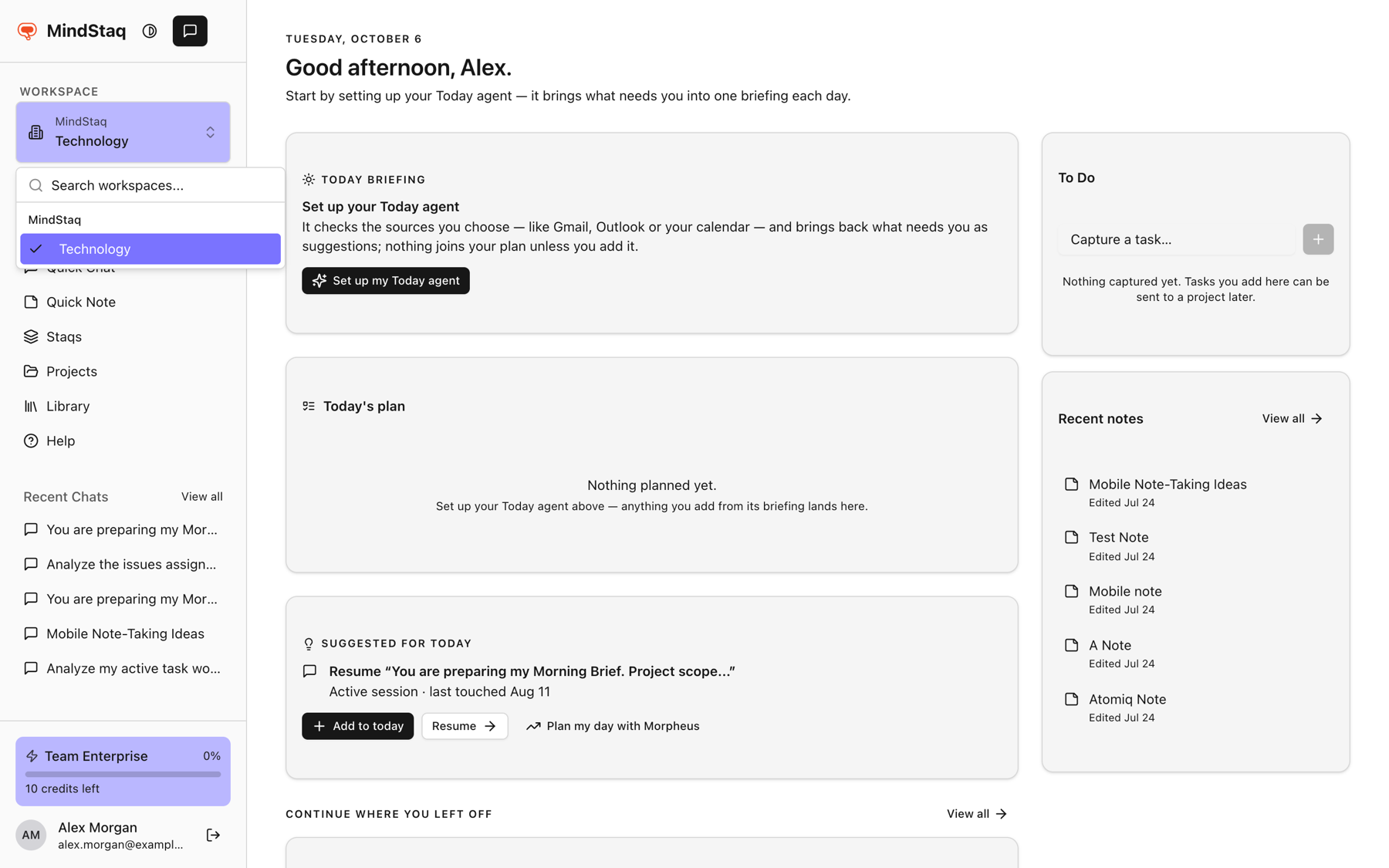
In the sidebar, open the Workspace switcher.
-
Use Search workspaces... if the list is long, then select a workspace. Personal workspaces are under Personal Workspaces; others are grouped by organisation.
Expected result
Your name and photo update. After a password change you see "Password changed successfully." After switching, the switcher shows the new workspace and your chats, projects, plan, and credits are those of that workspace. If you were on a specific chat or project, you return to the home page.
Tips
- Your last chosen workspace is remembered.
- A photo upload shows "PNG, JPG up to 2 MB".
Troubleshooting
- "Failed to save changes. Please try again.": try again; if it persists, contact support.
- "Passwords must match.": retype both fields.
- A workspace is missing: see I can't sign in or see my workspace.
- Switching sends you to another MindStaq app: some workspaces are not served here and open in their own app.
Related guides
- Sign in and choose a workspaceSign in to MindStaq and make sure you are working in the right workspace.
- Understand workspace scoping and accessLearn why your projects, chats, and work depend on the workspace you are in, and what workspace and project roles control.
- Plans, credits, and billingFind your plan, see your credit usage and billing cycle, and know who can manage billing.
- I can't sign in or see my workspaceFix sign-in problems, reset your password, and find a workspace that does not appear.
Email [email protected] and tell us what you were trying to do.
Email supportSpotted a mistake or something out of date? Report a problem with this guide. No email app? Write to [email protected] and name this guide.