I can't sign in or see my workspace
Fix sign-in problems, reset your password, and find a workspace that does not appear.
Get back into your account and into the workspace where your work lives.
What you need
- The email address you registered with.
- Access to that inbox, if you need to reset your password.
Steps
You cannot sign in
-
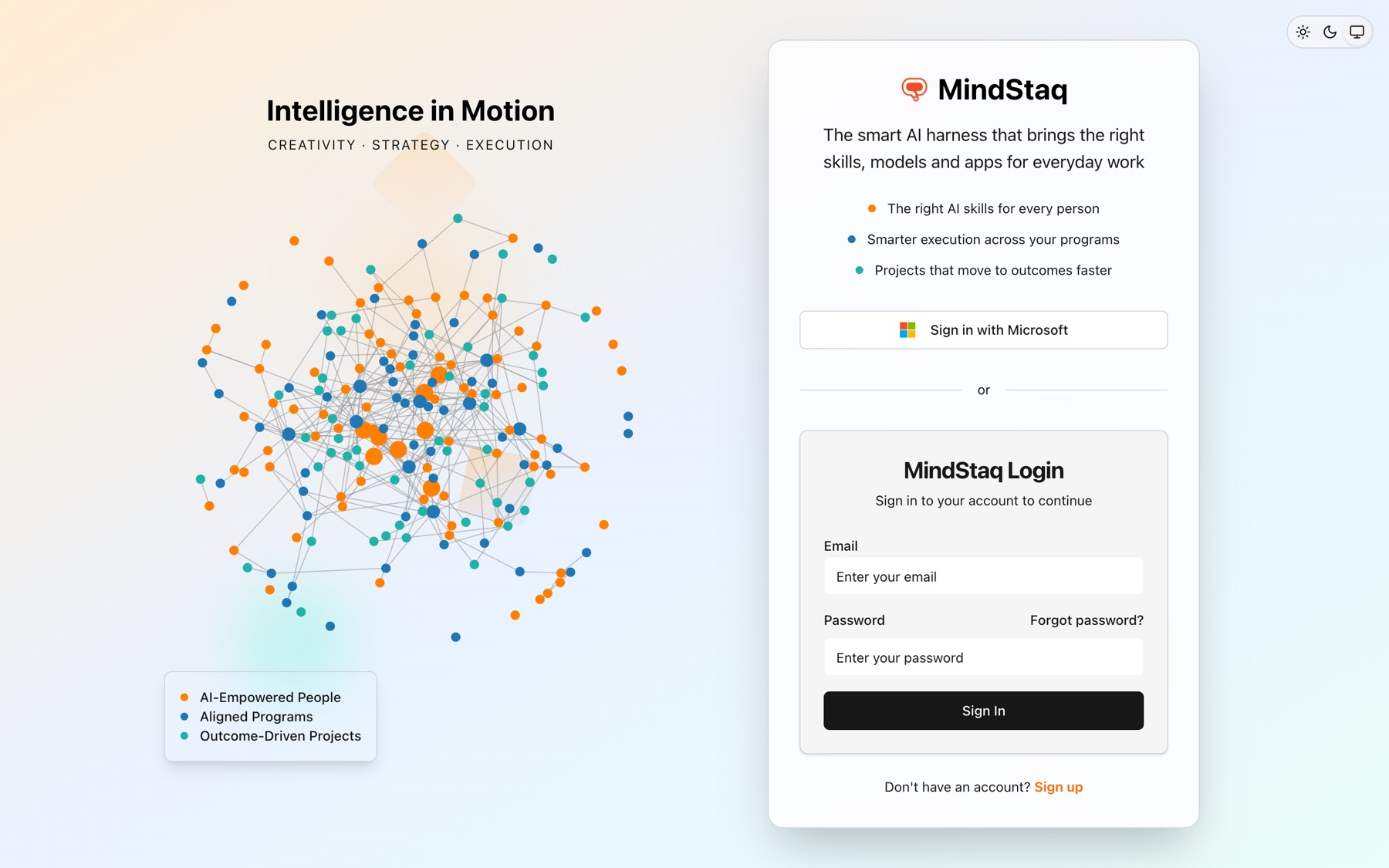
On the sign-in page, enter your Email and Password and choose Sign In. If you signed up with Microsoft, choose Sign in with Microsoft instead.
-
If you see "Invalid credentials. Please try again.", re-type carefully.
-
If you forgot your password, choose Forgot password?, enter your email, and choose Send Reset Link. The next screen is titled Check Your Email; also check spam.
-
If you do not have an account, choose Sign up.
You cannot see your workspace
-
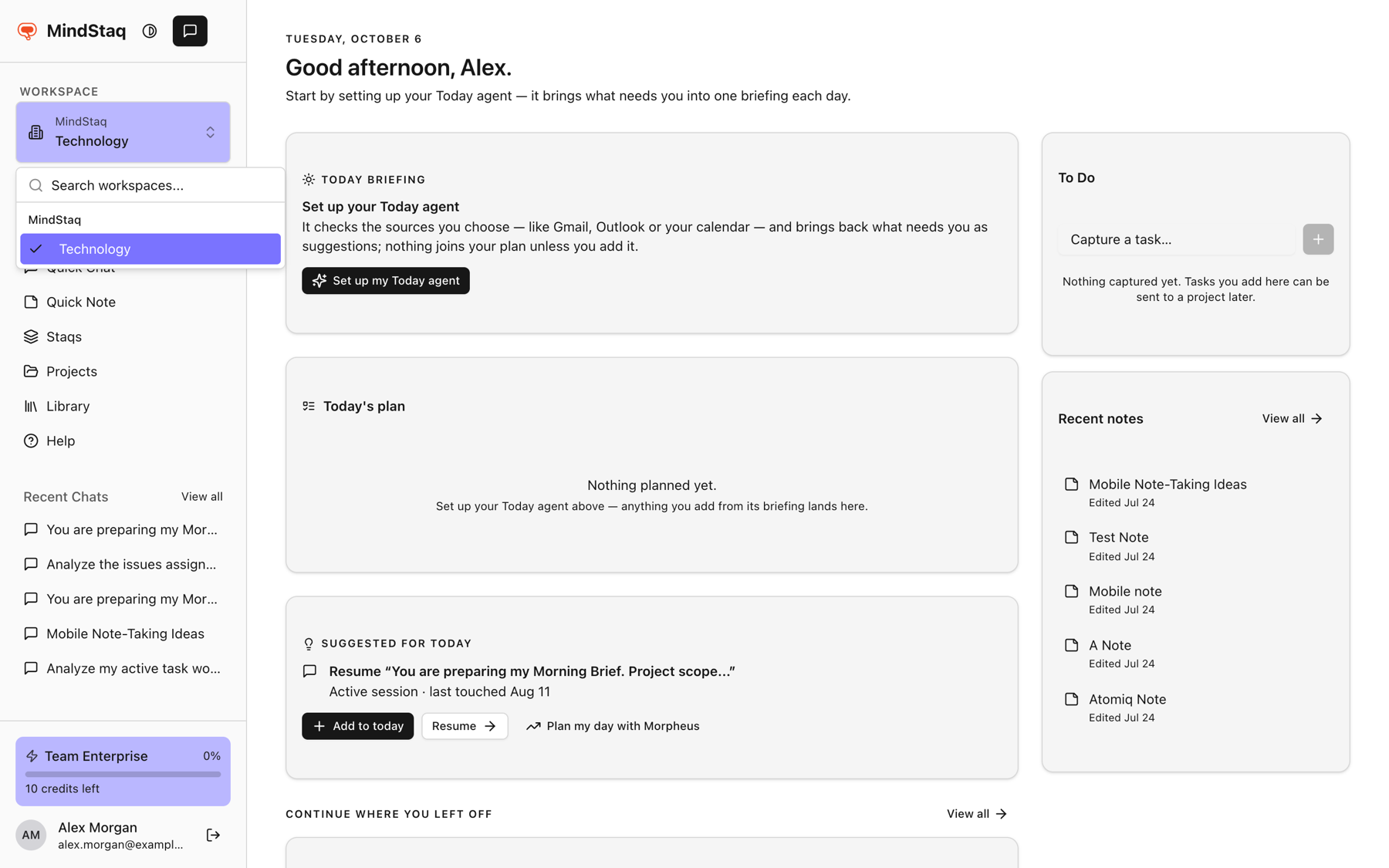
Open the Workspace switcher in the sidebar. If it says "Loading workspaces...", wait a moment, then reload.
-
Search by name. Personal workspaces are under Personal Workspaces; others are grouped by organisation.
-
If you see "No workspace found.", you may be searching for a workspace you are not a member of. Ask an admin to add you.
-
Chats and projects belong to a workspace, so switch to the one where you created them.
Expected result
You reach the app signed in, and the switcher shows your workspace with your work in it.
Tips
- Use Log out at the bottom of the sidebar, then sign in again, to refresh a stuck session.
- Some workspaces are served by a different MindStaq app. Opening one can take you there.
Troubleshooting
- Still rejected, or no reset email: contact support using your email, since you cannot sign in, and say it is an account problem.
- Workspace is missing after an invite: ask the inviter to confirm you were added.
Related guides
- Sign in and choose a workspaceSign in to MindStaq and make sure you are working in the right workspace.
- Update your profile and switch workspacesChange your name, photo, and password, and move between your workspaces.
- Understand workspace scoping and accessLearn why your projects, chats, and work depend on the workspace you are in, and what workspace and project roles control.
Email [email protected] and tell us what you were trying to do.
Email supportSpotted a mistake or something out of date? Report a problem with this guide. No email app? Write to [email protected] and name this guide.