Sign in and choose a workspace
Sign in to MindStaq and make sure you are working in the right workspace.
Sign in once and confirm the workspace you are in, because projects, chats, notes, and credits are all scoped to a workspace.
What you need
- A MindStaq account, or a Microsoft account that is linked to one.
Steps
-
Open MindStaq. If you are not signed in, you are sent to the sign-in page. After you sign in, you are returned to the page you were trying to open.
-
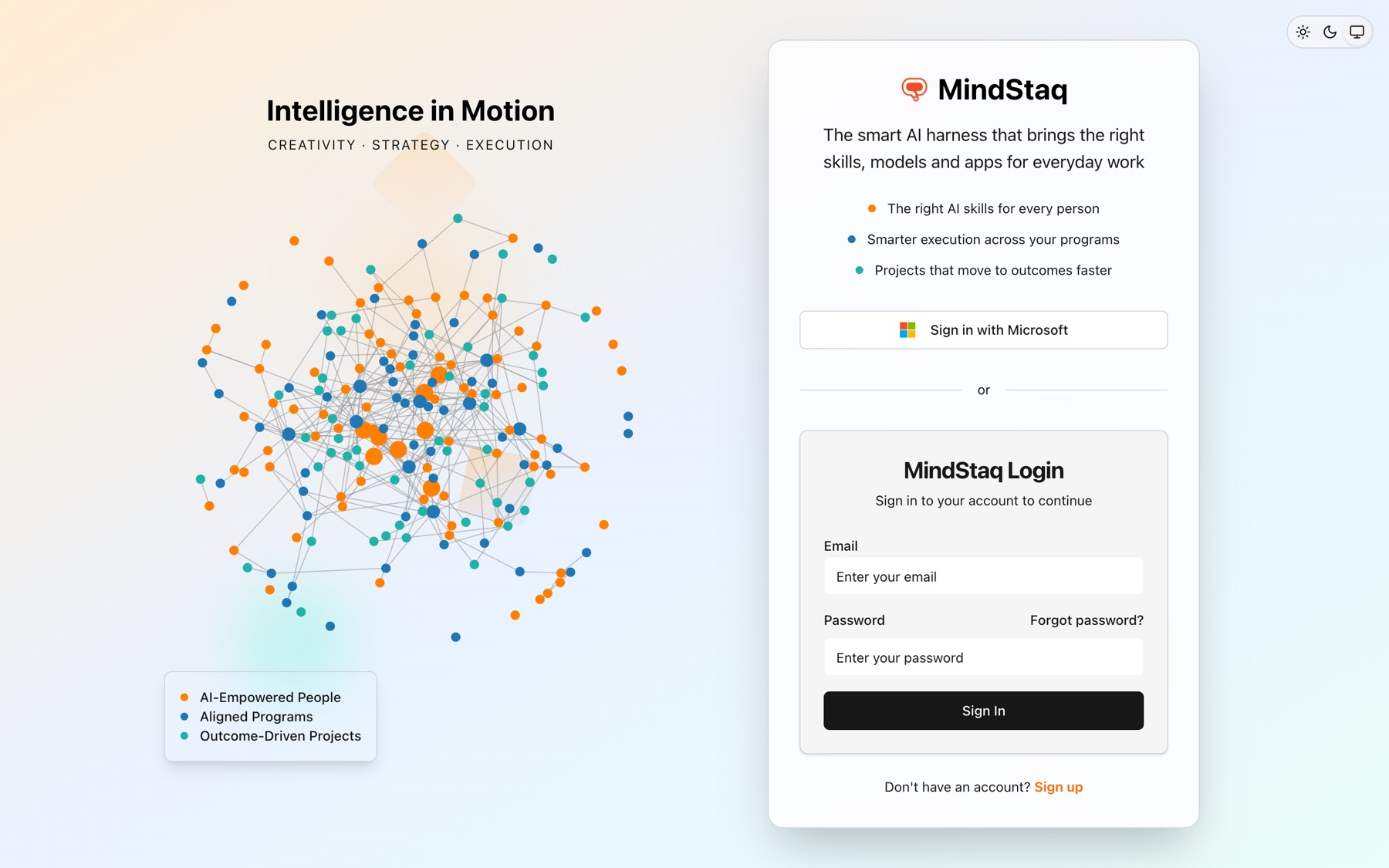
Sign in. Choose Sign in with Microsoft, or enter your Email and Password and choose Sign In. If you forgot your password, choose Forgot password?.
-
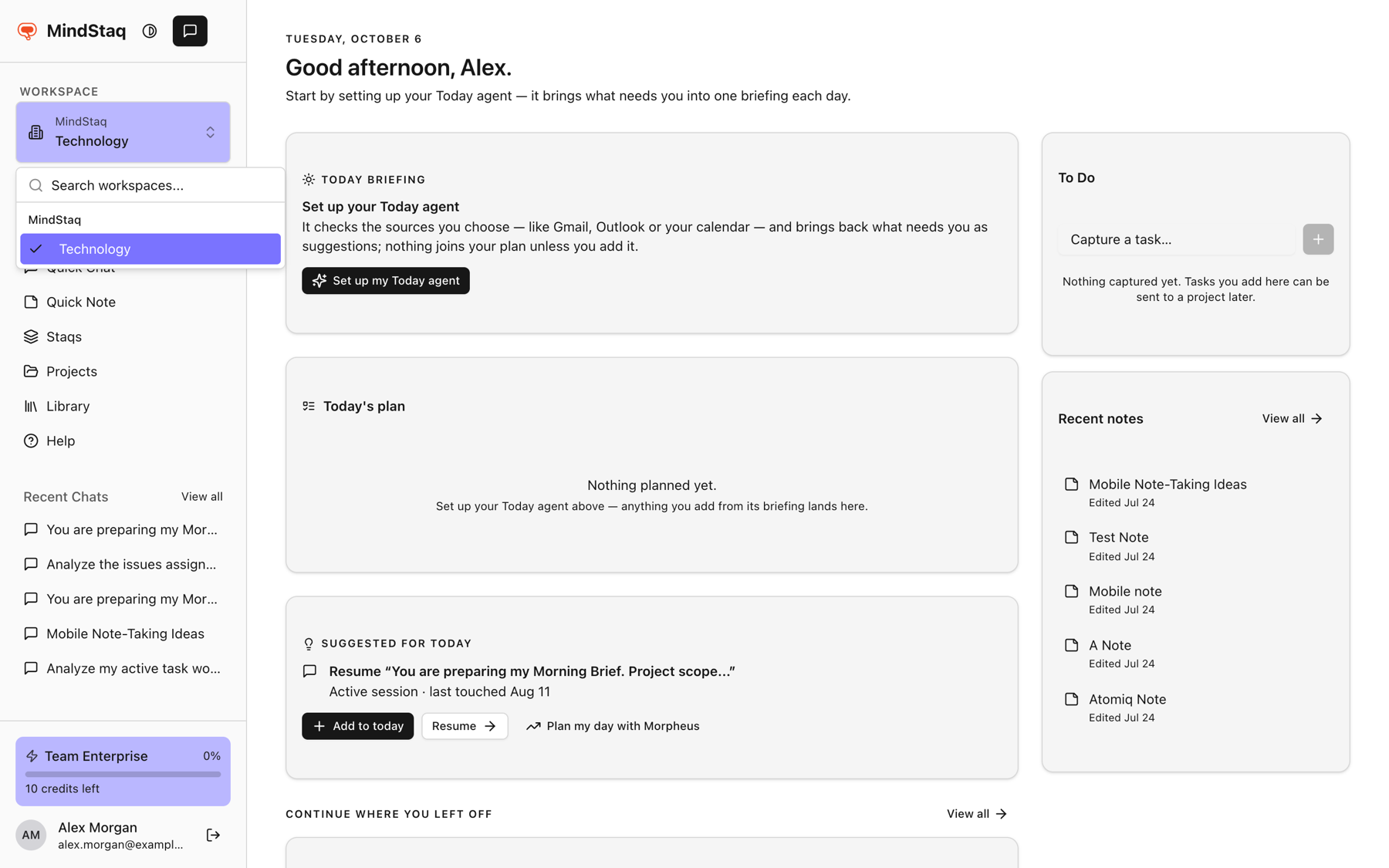
Check the workspace. At the top of the sidebar, the Workspace switcher shows the organisation and the workspace you are in.
-
Switch if needed. Open the switcher, search under Search workspaces..., and select a workspace. Workspaces are grouped by organisation, and your own appear under Personal Workspaces.
Expected result
You land on Today in the workspace you picked. If you switch workspace while viewing a single chat or project, you are taken back to Today, because that item belongs to the previous workspace.
Tips
- Your plan and credit meter at the bottom of the sidebar belong to the current workspace.
- To sign out, use the log out button next to your name at the bottom of the sidebar.
- Don't have an account? Choose Sign up on the sign-in page.
Troubleshooting
- You are sent back to the sign-in page. Your session may have expired. Sign in again.
- A workspace is missing from the switcher. You may not have access to it, or it belongs to another organisation. See Can't sign in or see my workspace.
- Sign up is not available. Registration is not enabled in every environment. Ask the person who invited you.
Related guides
- Start your first work sessionBegin a conversation with the assistant about a real goal and see it saved as a work session.
- Update your profile and switch workspacesChange your name, photo, and password, and move between your workspaces.
- Understand workspace scoping and accessLearn why your projects, chats, and work depend on the workspace you are in, and what workspace and project roles control.
- I can't sign in or see my workspaceFix sign-in problems, reset your password, and find a workspace that does not appear.
Email [email protected] and tell us what you were trying to do.
Email supportSpotted a mistake or something out of date? Report a problem with this guide. No email app? Write to [email protected] and name this guide.