Understand workspace scoping and access
Learn why your projects, chats, and work depend on the workspace you are in, and what workspace and project roles control.
Your projects, tasks, issues, notes, documents, and chats belong to a workspace. What you see depends on the workspace you are in and your role there and in each project.
What you need
- Access to at least one workspace.
Steps
-
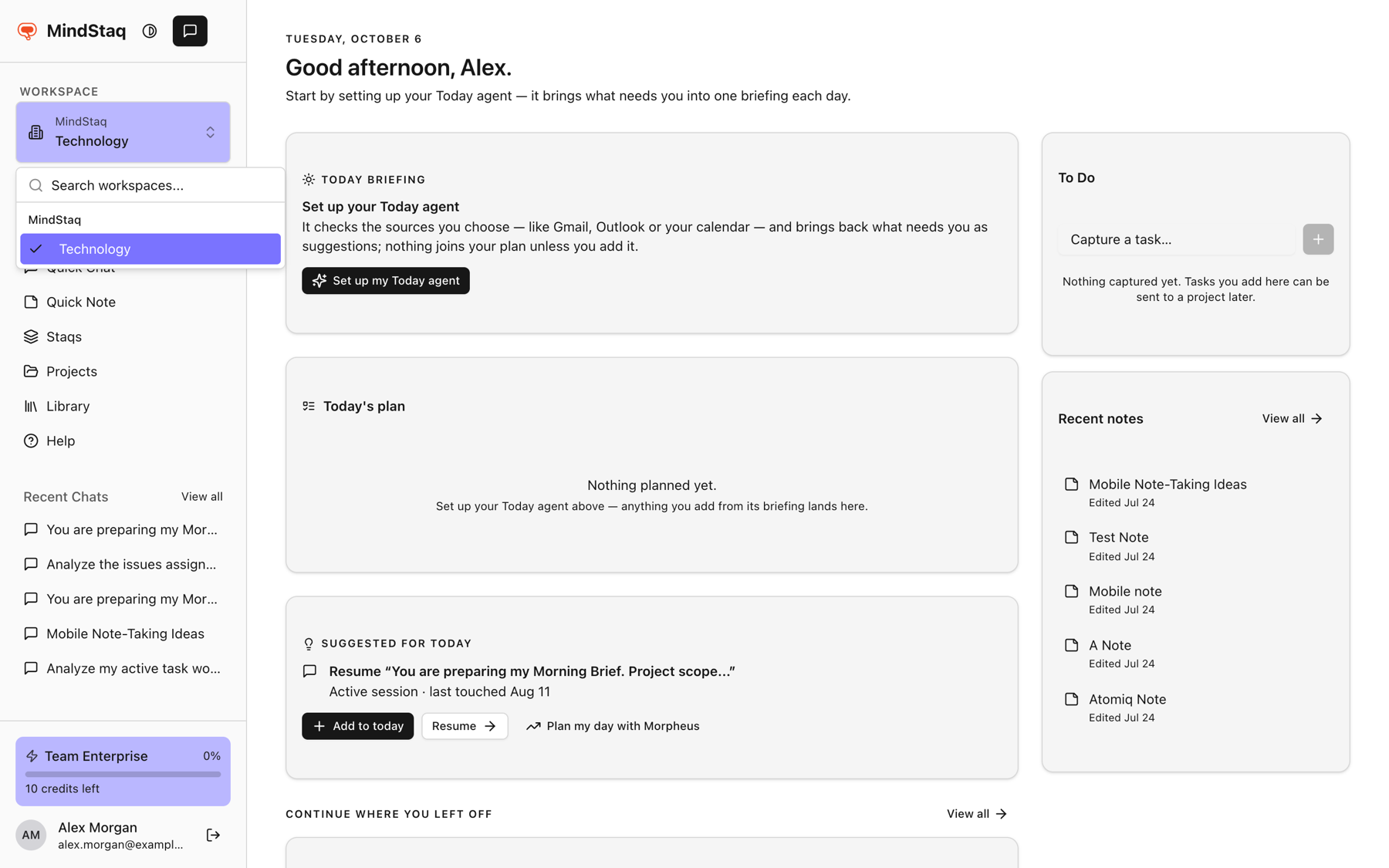
Check your workspace. Look at the Workspace selector at the top of the sidebar. It shows the workspace you are in.
-
Switch if needed. Open the selector, search under Search workspaces..., and choose another. Personal workspaces appear under Personal Workspaces; company workspaces are grouped by organisation.
-
Expect a fresh view. After switching, the page returns to Today unless you were on Projects, Chats, Staqs, Account, or Help. Projects, My Work, Library, and recent chats now show the new workspace.
-
Check your role. Workspace roles are Owner, Admin, Member, and Guest. Owners and Admins manage members and subscriptions; Members and above can create projects; Guests can view. Inside a project you are a Project Owner, Project Manager, or Team Member. See Project roles.
Expected result
You know which workspace owns the item you are looking for, and why you can or cannot change it.
Tips
- AI work follows the same rule. A session, and the tasks, notes, and documents it creates, belong to the workspace where you started it. See Link work back to a project or session.
- A new project starts in Planning and is visible only to people who can edit it until it is activated. See Create a project.
Troubleshooting
- A project, chat, or note is missing: it probably lives in another workspace. Switch workspaces and look again.
- I see a project but cannot edit it: your project role does not allow it. Ask a Project Manager.
- My workspace is not listed or I am sent elsewhere: see I can't sign in or see my workspace.
Related guides
- Sign in and choose a workspaceSign in to MindStaq and make sure you are working in the right workspace.
- Update your profile and switch workspacesChange your name, photo, and password, and move between your workspaces.
- I can't sign in or see my workspaceFix sign-in problems, reset your password, and find a workspace that does not appear.
- Understand Project Owner, Project Manager, and Team Member rolesSee what each project role can see and change, and how task group owners and issue reviewers get extra rights.
- Use My Work as the Today command centerSee everything on your plate in one feed, spot what needs attention, and decide what goes onto Today.
- Link work back to a project or sessionKeep chats, tasks, issues, notes, and documents connected to the project or session they came from.
Email [email protected] and tell us what you were trying to do.
Email supportSpotted a mistake or something out of date? Report a problem with this guide. No email app? Write to [email protected] and name this guide.