Choose Quick, Balanced, or Deep
Pick the right AI tier for the job, or let Auto choose for each message.
AvailableLast reviewed 2026-10-05
Match the amount of AI effort to the task by choosing a tier, or leave it on Auto.
What you need
- An open chat. The tier picker is next to the send button. On narrow phone screens it is hidden.
Steps
-
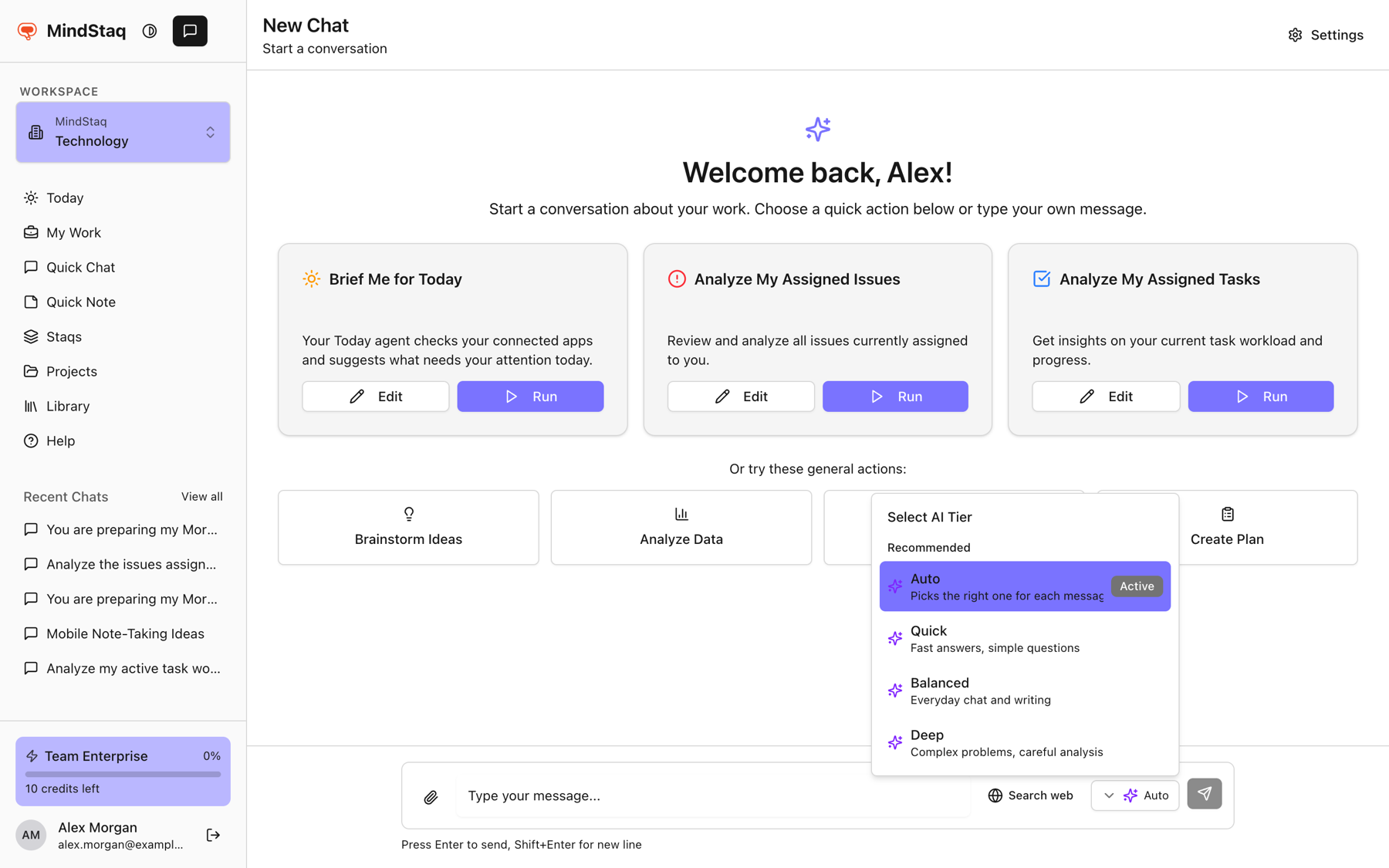
Open the picker. In the message area, choose the button that shows the current tier (it reads Auto by default). The list is titled Select AI Tier.
-
Choose a tier. The tiers and the descriptions shown are:
- Auto: picks the right one for each message.
- Quick: fast answers, simple questions.
- Balanced: everyday chat and writing.
- Deep: complex problems, careful analysis.
-
Send your message. The chosen tier is marked Active in the list.
Expected result
Your messages use the tier you picked. With Auto, the assistant decides per message.
Tips
- Use Auto unless you have a reason not to.
- Use Quick for lookups and rewrites, Balanced for drafting, and Deep for plans, analysis, and research.
- The picker shows tiers, not individual model names. Which model sits behind a tier can change over time.
- When you run an AI Skill, the panel has its own Model choice with the same four tiers.
Troubleshooting
- The picker says "No models configured". The list could not be loaded. Refresh the page; if it persists, contact support.
- You cannot find the picker on your phone. It is hidden on narrow screens; use a wider window or rotate the device.
Related guides
- Understand smart model routing and creditsLearn how Auto picks a tier, how credits are used, and what happens when your allowance runs out.
- Use web search and deep researchLet the assistant search the web for a message, and use the Deep tier for research that needs careful analysis.
- Start your first work sessionBegin a conversation with the assistant about a real goal and see it saved as a work session.
- Troubleshoot unavailable models, quota, file processing, and session failuresFix the most common reasons an AI session will not send, stops, or cannot read your files.
Still need help?
Email [email protected] and tell us what you were trying to do.
Email supportSpotted a mistake or something out of date? Report a problem with this guide. No email app? Write to [email protected] and name this guide.