Return to unfinished work from My Work
Find your open work sessions, tasks, and issues in one place and pick up where you stopped.
Open My Work to see everything on your plate, then resume a session in one click.
What you need
- At least one earlier chat, task, or issue in the current workspace.
Steps
-
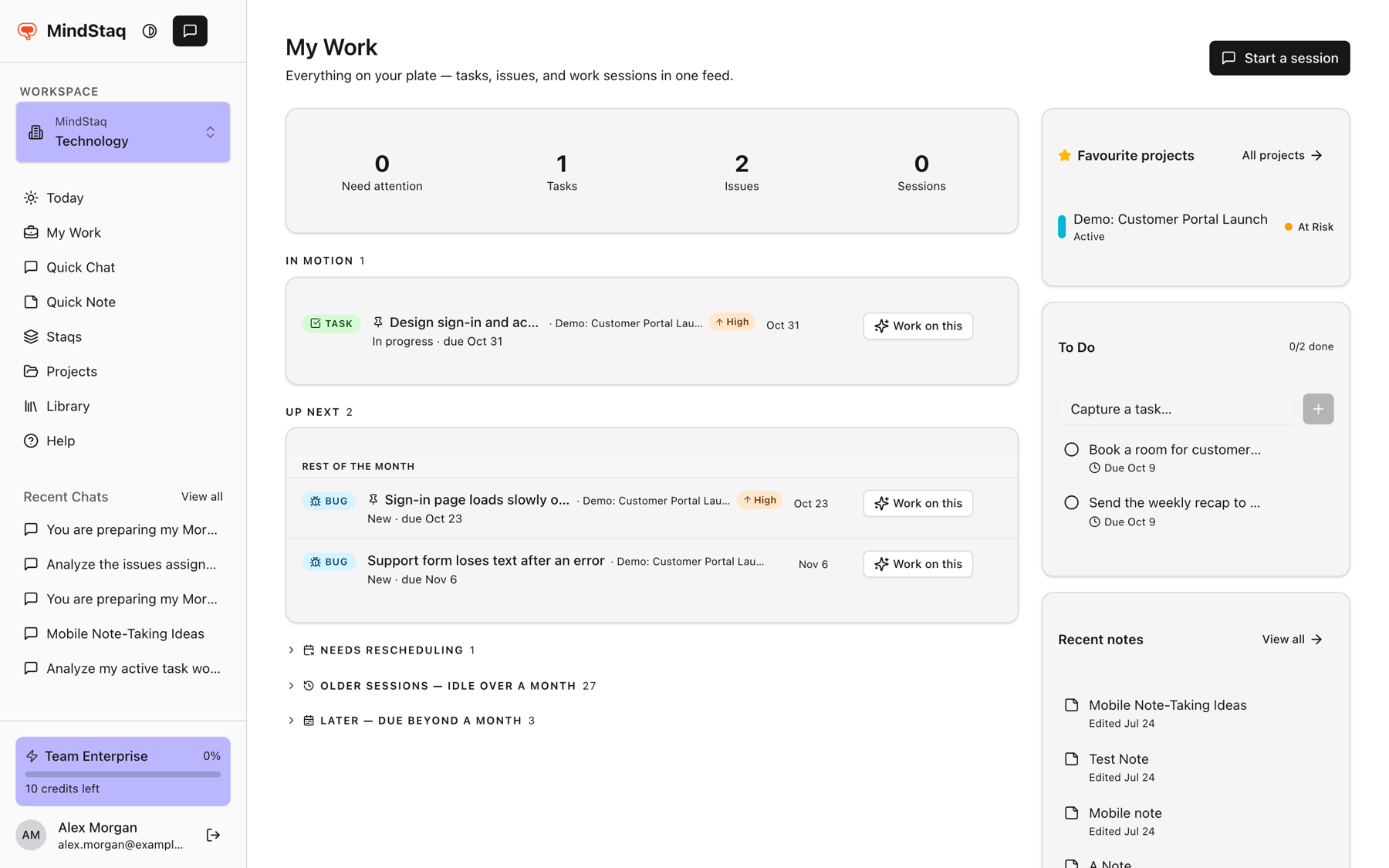
Open My Work. Choose My Work in the sidebar. A red count on it means some items need attention.
-
Filter the feed. At the top, choose Need attention, Tasks, Issues, or Sessions to narrow the list. Choose the same one again to clear the filter.
-
Resume a session. Rows are grouped as Needs attention, In motion, Up next, and Completed. Choose Resume on a session.
-
Use Today as a shortcut. On Today, Continue where you left off shows up to three active sessions, with View all.
Expected result
The chat opens with its earlier messages, and your next message continues from there.
Tips
- Sessions idle for over a month are under Older sessions, and a link goes to all chats.
- Recent Chats in the sidebar lists your latest five. View all opens All Chats, where you can search chats.
- On a task or issue, Work on this starts a session about it.
Troubleshooting
- A session is missing. Chats belong to a workspace. Switch to the workspace where you started it.
- A session is hidden. Items you parked or deferred are in collapsed strips labelled Parked and Deferred. Use Bring back to restore.
Related guides
- Continue a previous sessionReopen an earlier chat, resume it, and manage whether it is active, paused, blocked, or done.
- Use My Work as the Today command centerSee everything on your plate in one feed, spot what needs attention, and decide what goes onto Today.
- Plan your day on TodayBuild a short plan of the work you chose for today and pick up work that is due today from the suggestions.
- Start your first work sessionBegin a conversation with the assistant about a real goal and see it saved as a work session.
Email [email protected] and tell us what you were trying to do.
Email supportSpotted a mistake or something out of date? Report a problem with this guide. No email app? Write to [email protected] and name this guide.