What MindStaq is
Understand how MindStaq combines an AI assistant with your projects, tasks, notes, and documents so work ends in outcomes.
AvailableLast reviewed 2026-10-05
MindStaq is an AI work platform that knows your work: you start with a goal, work on it with the assistant, and finish with something you can keep, such as a note, a document, a task list, or a project plan.
What you need
- A MindStaq account and access to a workspace. See Sign in and choose a workspace.
How the pieces fit
- Today is the page you land on. It shows your plan for the day, suggestions, and the work sessions you can continue.
- My Work is one feed of your tasks, issues, and work sessions, with a count of items that need attention.
- Quick Chat (and New Chat) starts a conversation with the assistant. Each conversation is a work session you can come back to.
- Projects hold shared tasks, issues, notes, documents, and conversations for a team. Staqs are a place to organise your own ideas and conversations.
- Library lists the notes and documents in your workspace, and Quick Note captures a note fast.
- AI Skills are ready-made, repeatable prompts for common jobs.
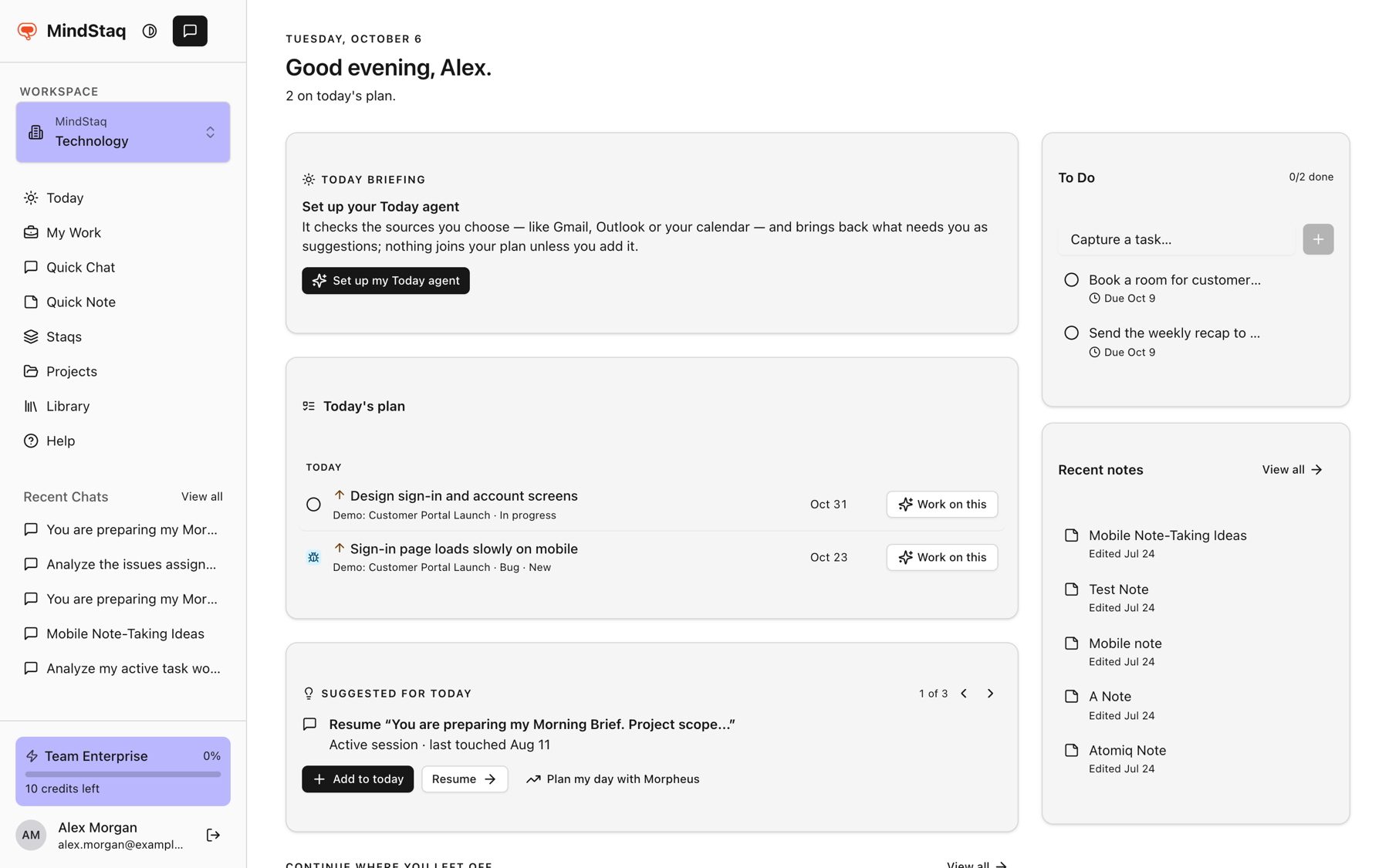
Everything you see belongs to the workspace you are in. See Understand workspace scoping and access.
Expected result
You know where to start a conversation, where to find unfinished work, and where finished output is stored.
Tips
- Start with the outcome you want, not a topic. See Start with a goal.
- Use the glossary when a term is new.
Troubleshooting
- You do not see an item in the sidebar that a guide mentions. Some items, such as Insights and AI Skills Catalog, are not shown in every environment. See Integrations and availability.
Related guides
- Sign in and choose a workspaceSign in to MindStaq and make sure you are working in the right workspace.
- Start your first work sessionBegin a conversation with the assistant about a real goal and see it saved as a work session.
- MindStaq glossaryShort definitions of the terms you see across MindStaq.
- Use My Work as the Today command centerSee everything on your plate in one feed, spot what needs attention, and decide what goes onto Today.
Still need help?
Email [email protected] and tell us what you were trying to do.
Email supportSpotted a mistake or something out of date? Report a problem with this guide. No email app? Write to [email protected] and name this guide.