Start your first work session
Begin a conversation with the assistant about a real goal and see it saved as a work session.
Start a chat about something you actually need to get done, and watch it appear as a work session you can resume later.
What you need
- You are signed in and in the workspace you want. See Sign in and choose a workspace.
Steps
-
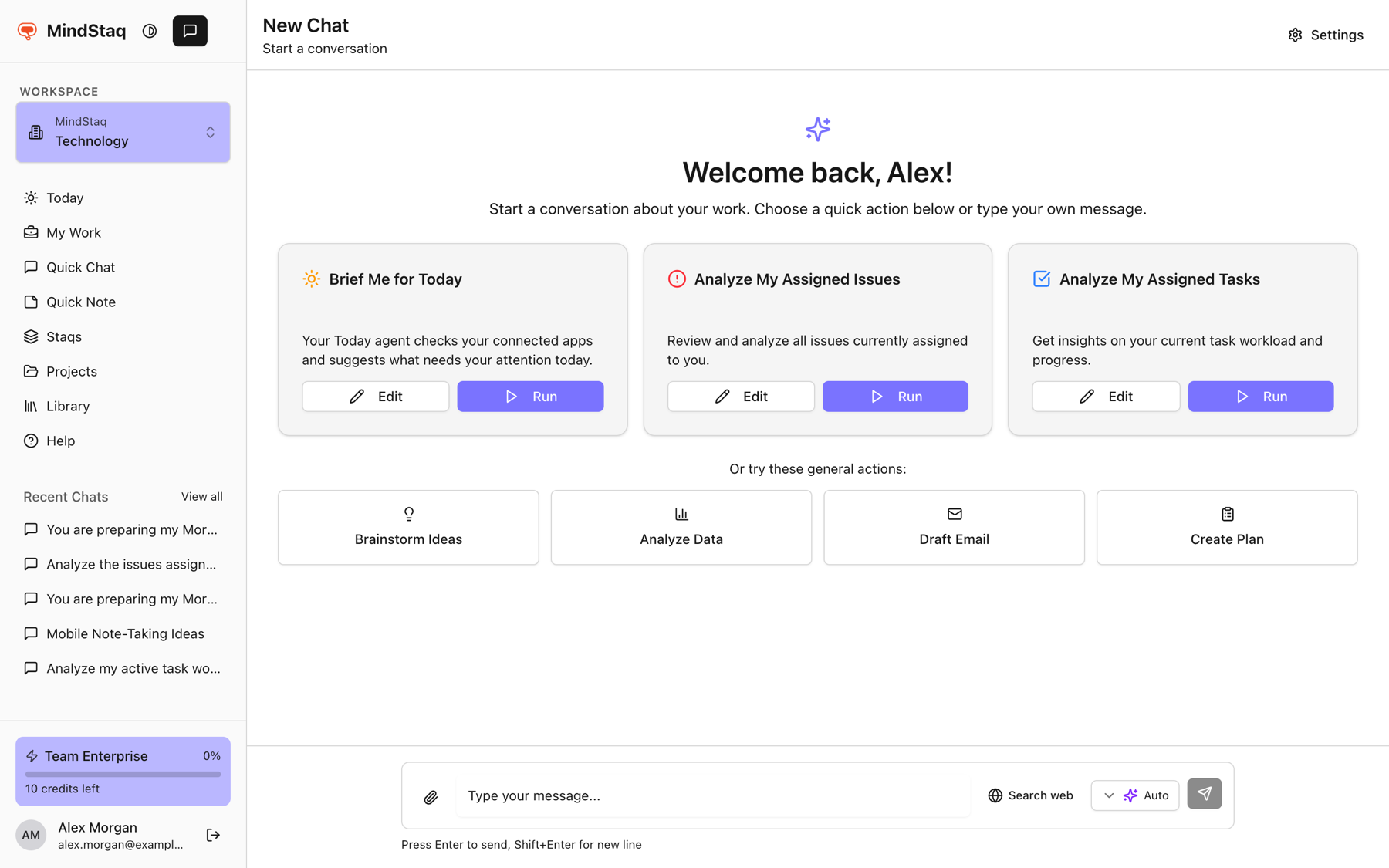
Open a new chat. Choose Quick Chat in the sidebar, or the chat button at the top of the sidebar (its tooltip is New Chat). Start a session on My Work does the same, and so does Start a chat on Today when you have no active chats.
-
Pick a starting point, or type your own. The welcome screen offers quick-action skill cards, and the buttons Brainstorm Ideas, Analyze Data, Draft Email, and Create Plan, which fill the message box for you to finish.
-
State your goal. In the message box ("Type your message..."), describe what you want and what a good result looks like. Press Enter to send, or Shift+Enter for a new line.
-
Read and steer. The reply streams in. Ask follow-up questions in the same chat.
Expected result
The chat is created and saved. It appears under Recent Chats in the sidebar and as a card in Continue where you left off on Today.
Tips
- Keep one goal per session so it is easy to resume.
- You can rename a chat with the pencil next to its title.
Troubleshooting
- The message box is disabled and says AI credits are exhausted. Your credit allowance has been reached. See Understand smart model routing and credits.
- The reply fails. Use Retry on the error message. See Troubleshoot AI sessions.
Related guides
- Start a chat in WorkAsk a question, attach files, and keep the conversation in your workspace.
- Start with a goalWrite your first message as an outcome so the assistant can plan, ask the right questions, and deliver something usable.
- Choose Quick, Balanced, or DeepPick the right AI tier for the job, or let Auto choose for each message.
- Create your first useful outputTurn a conversation into something you can keep, such as a note or a Word document.
- Return to unfinished work from My WorkFind your open work sessions, tasks, and issues in one place and pick up where you stopped.
Email [email protected] and tell us what you were trying to do.
Email supportSpotted a mistake or something out of date? Report a problem with this guide. No email app? Write to [email protected] and name this guide.