Plan your day on Today
Build a short plan of the work you chose for today and pick up work that is due today from the suggestions.
Use Today to keep a short plan of the tasks, issues, and chats you intend to work on, and to pull in work that is due today.
What you need
- Access to a workspace with tasks, issues, or work chats assigned to you.
Steps
-
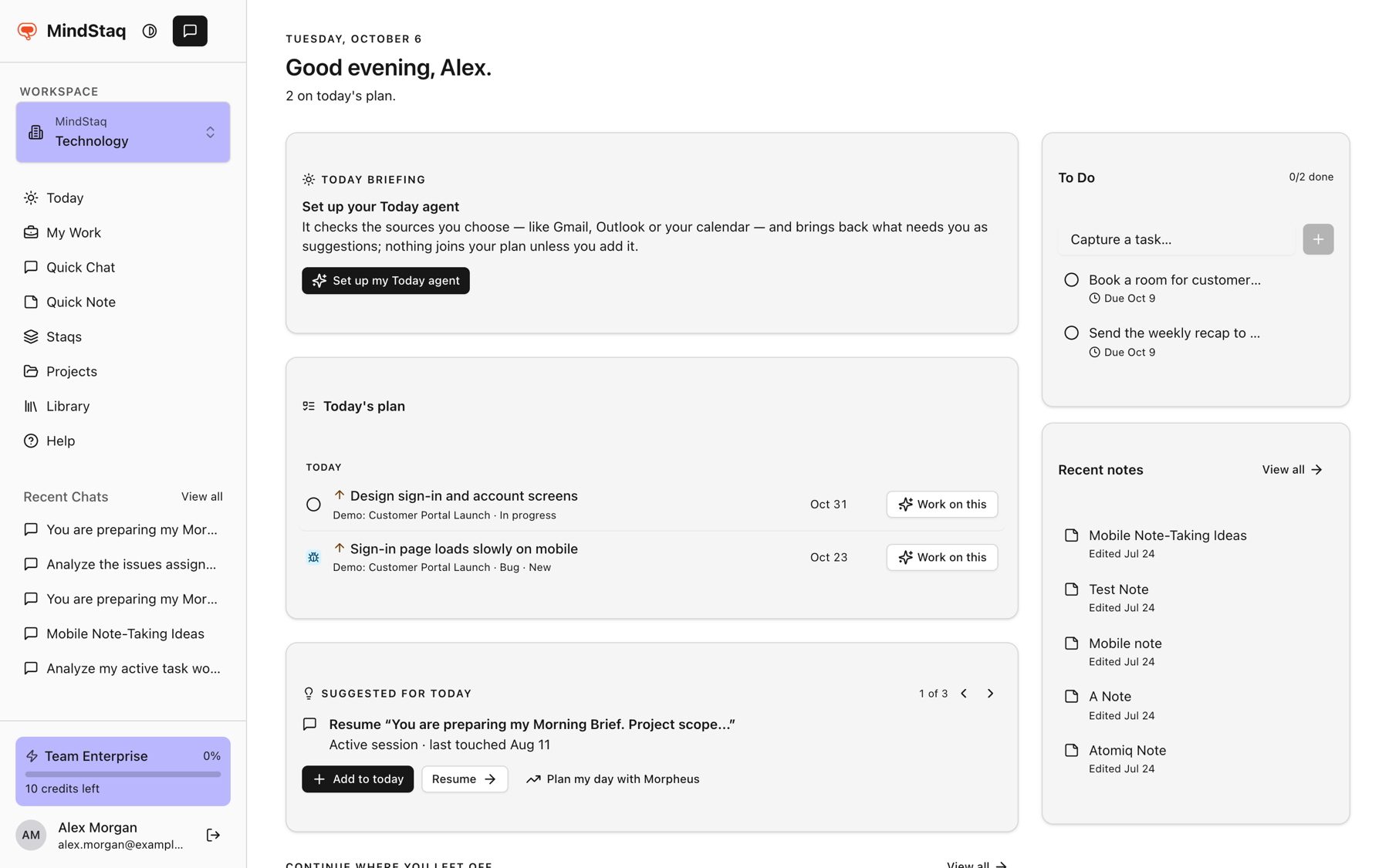
Open Today. Choose Today in the sidebar.
-
Review Today's plan. The plan holds only work you chose: items you pinned, items you planned for a day, and unfinished earlier plans, which are marked "carried over" with the day they came from. A due date alone never puts work on your plan.
-
Check Suggested for today. Blocked or overdue work is suggested first, then work that is due today, labelled "Due today". Tasks and issues are both suggested. Use the arrows to move between suggestions.
-
Add a suggestion to your plan. Choose Add to today. The item moves into Today's plan and leaves the suggestions.
-
Adjust a plan row. Open Plan options on a row and choose Move to today, Plan for tomorrow, Plan for next week, or Remove from plan. Every row offers Remove from plan, including work that is due today.
-
Start the work. Choose Work on this to start a session, or Resume if the item already has one.
Expected result
Today's plan shows only the work you added. Removing an item takes it off the plan without changing its due date. Work that is due today and not on your plan appears under Suggested for today.
Tips
- Items planned for tomorrow or next week appear under Tomorrow and Next week on the plan. On a Sunday, next week starts tomorrow, so only one option is offered.
- Choose Plan my day with Morpheus on the suggestions card to ask the assistant for a recommended order for your day.
- Plans are personal: pinning or planning an item never changes its due date or what teammates see.
- Under Continue where you left off, Today lists your active work chats.
Troubleshooting
- A task due today is not on my plan: this is expected. Look for it under Suggested for today and choose Add to today.
- A due-today item is missing from the suggestions: it may already be on your plan, or it may be completed, closed, parked, or deferred.
- If the plan is empty, Today says "Nothing planned yet." Add a suggestion, plan tasks from My Work, or capture one in the To Do list.
Related guides
- Use My Work as the Today command centerSee everything on your plate in one feed, spot what needs attention, and decide what goes onto Today.
- Create a projectGroup tasks, issues, notes, documents, and chats for a piece of work in one project.
- Start a chat in WorkAsk a question, attach files, and keep the conversation in your workspace.
- Return to unfinished work from My WorkFind your open work sessions, tasks, and issues in one place and pick up where you stopped.
- Continue a previous sessionReopen an earlier chat, resume it, and manage whether it is active, paused, blocked, or done.
Email [email protected] and tell us what you were trying to do.
Email supportSpotted a mistake or something out of date? Report a problem with this guide. No email app? Write to [email protected] and name this guide.