Continue a previous session
Reopen an earlier chat, resume it, and manage whether it is active, paused, blocked, or done.
Pick up an earlier conversation exactly where you left it, and keep your list of sessions tidy.
What you need
- An earlier chat in the workspace you are in.
Steps
-
Find the chat. Use Recent Chats in the sidebar, Continue where you left off on Today, or All Chats (from View all).
-
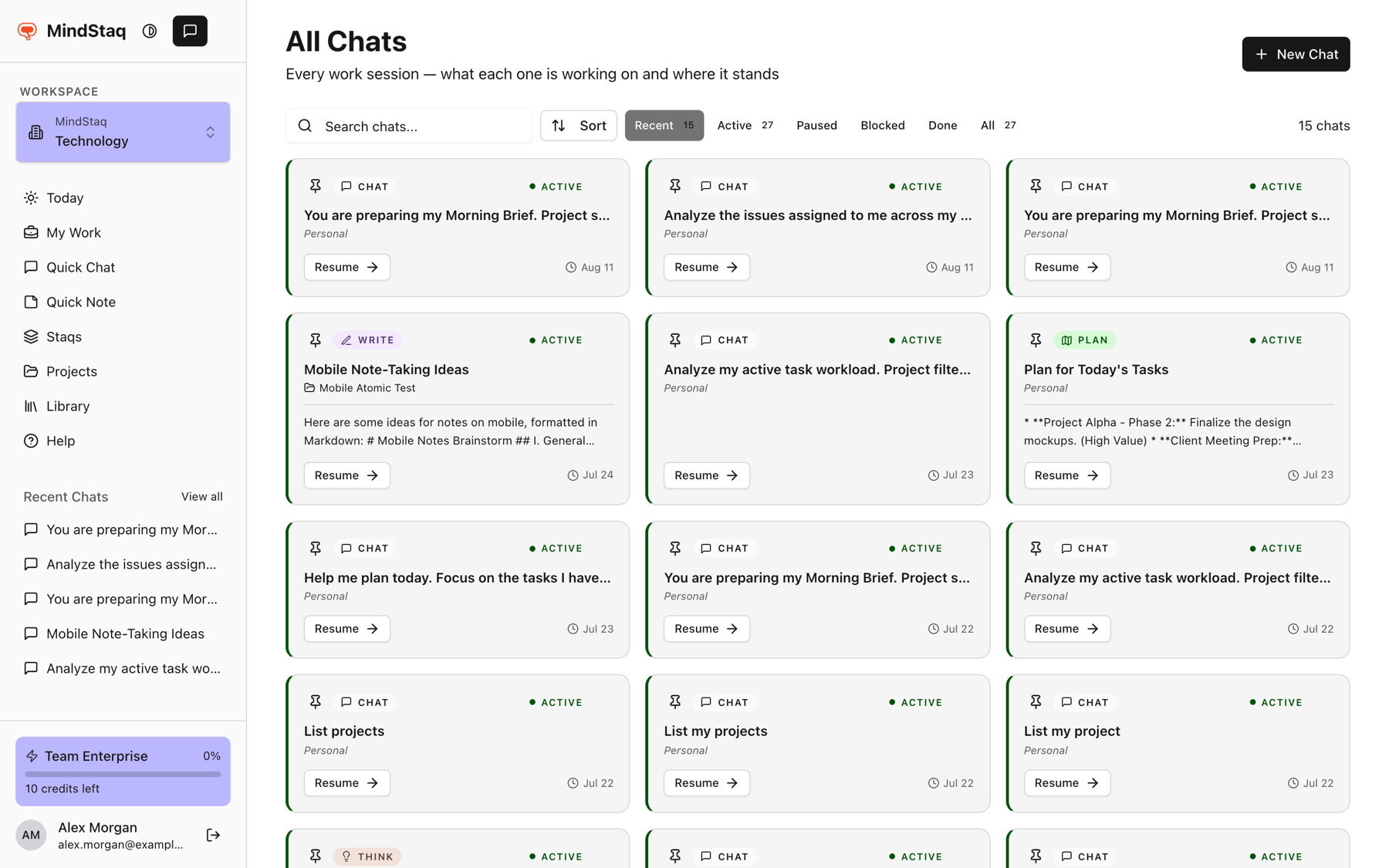
Search and filter. In All Chats, use Search chats..., Sort, and the filters Recent, Active, Paused, Blocked, Done, and All.
-
Resume. Choose Resume on a card, or click its title. The messages load and you can keep typing.
-
Set its state. Open the card menu (Chat card actions) and choose Mark as done, Pause, Mark as blocked, Mark as active, or Reopen.
-
Pin or delete. Choose Pin to Today to keep it on Today. Delete chat asks you to confirm.
Expected result
The earlier messages and attachments are there, and your new message continues the conversation. Sending a message in a paused session makes it active again; a blocked session stays blocked until you change it.
Tips
- Project and staq chats are also listed on that project's or staq's own page.
- Cards show what the session is working on and a short summary.
Troubleshooting
- The chat is not listed. Switch to the workspace where you started it, or clear filters and search.
- The conversation became too long. Start a new chat; see Troubleshoot AI sessions.
Related guides
- Return to unfinished work from My WorkFind your open work sessions, tasks, and issues in one place and pick up where you stopped.
- Start a chat in WorkAsk a question, attach files, and keep the conversation in your workspace.
- Add project, task, issue, note, or file contextGive a session the right background by starting it from a project, staq, task, or issue, or by attaching files.
- Link work back to a project or sessionKeep chats, tasks, issues, notes, and documents connected to the project or session they came from.
Email [email protected] and tell us what you were trying to do.
Email supportSpotted a mistake or something out of date? Report a problem with this guide. No email app? Write to [email protected] and name this guide.