Use My Work as the Today command center
See everything on your plate in one feed, spot what needs attention, and decide what goes onto Today.
My Work gathers the tasks, issues, and work sessions assigned to you into one feed, so you can triage first and then choose what to do today.
What you need
- Access to a workspace. My Work shows what is assigned to you in the workspace you are in.
Steps
-
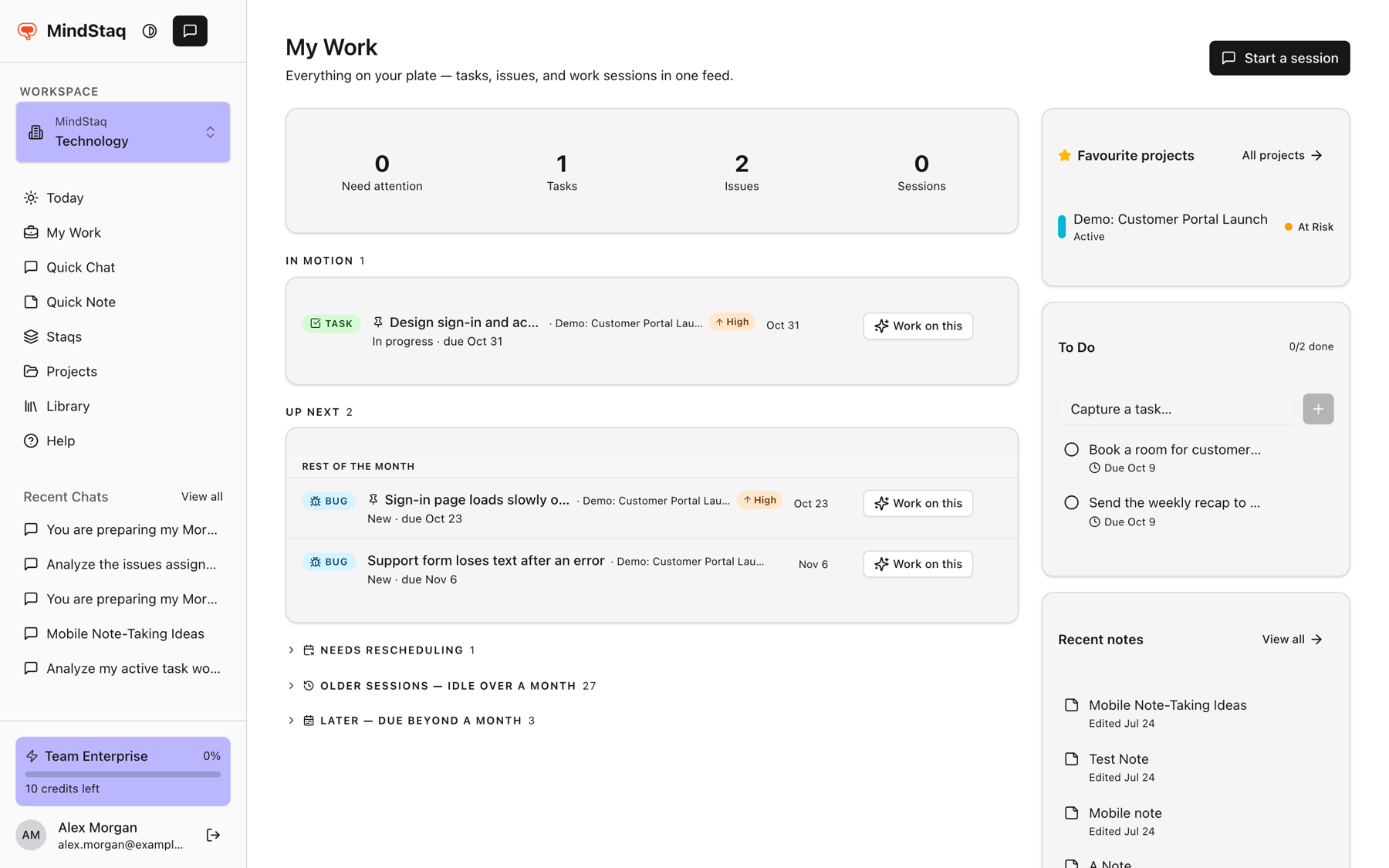
Open My Work. Choose My Work in the sidebar. A badge on it shows how many items need attention.
-
Read the summary strip. It shows counts for Need attention, Tasks, Issues, and Sessions. Select one to filter the feed; select it again to clear the filter.
-
Work down the sections. Items are grouped by state: Needs attention (blocked, waiting, blockers, overdue), In motion, and Up next. Each section shows five rows; choose Show all to see the rest.
-
Act on a row. Each row has a type chip (Task, Bug, Risk, Blocker, or Session). Choose Work on this to start a session about the item, or Resume if one already exists. The Row actions menu offers Mark as blocked or Clear blocked signal (tasks), Plan for tomorrow, Plan for next week, and Park — move aside.
-
Pin what matters. Pin a row to Today so it joins your plan. See Plan your day on Today.
-
Capture quick tasks. Use the To Do card on the right (Capture a task…). The card also lists Favourite projects and Recent notes.
Expected result
You can see what is blocked or late, what is moving, and what is next, and you can move items onto Today or set them aside.
Tips
- Sessions and tasks from AI work appear here too, so unfinished AI work is not lost. See Turn an answer into work.
- Parked and deferred items collect in collapsed strips at the bottom; choose Bring back to return one.
- Work overdue by more than a month moves to Needs rescheduling; open the project to fix its dates.
- Under the Tasks filter, turn on Show completed to include finished tasks.
Troubleshooting
- My Work is empty: you see only items assigned to you in the current workspace. Check the workspace switcher. See Understand workspace scoping and access.
- A task is missing from the feed: personal quick-capture tasks stay in the To Do card unless they are blocked or overdue.
Related guides
- Plan your day on TodayBuild a short plan of the work you chose for today and pick up work that is due today from the suggestions.
- Create task groups and tasksBreak a project into task groups and tasks, with owners, priorities, and dates.
- Track issues, risks, and blockersLog what is going wrong or at risk in a project, assign it, and follow it to resolution.
- Return to unfinished work from My WorkFind your open work sessions, tasks, and issues in one place and pick up where you stopped.
- Continue a previous sessionReopen an earlier chat, resume it, and manage whether it is active, paused, blocked, or done.
- Turn an answer into a note, document, task, issue, or project planSave an answer as a note or ask the assistant to create documents, tasks, issues, and project plans from it.
Email [email protected] and tell us what you were trying to do.
Email supportSpotted a mistake or something out of date? Report a problem with this guide. No email app? Write to [email protected] and name this guide.