Start a chat in Work
Ask a question, attach files, and keep the conversation in your workspace.
Use the assistant to ask a question, attach files, and find the conversation again later.
What you need
- A MindStaq account you can sign in with.
- Access to a workspace. You should see the Workspace switcher in the sidebar.
Steps
-
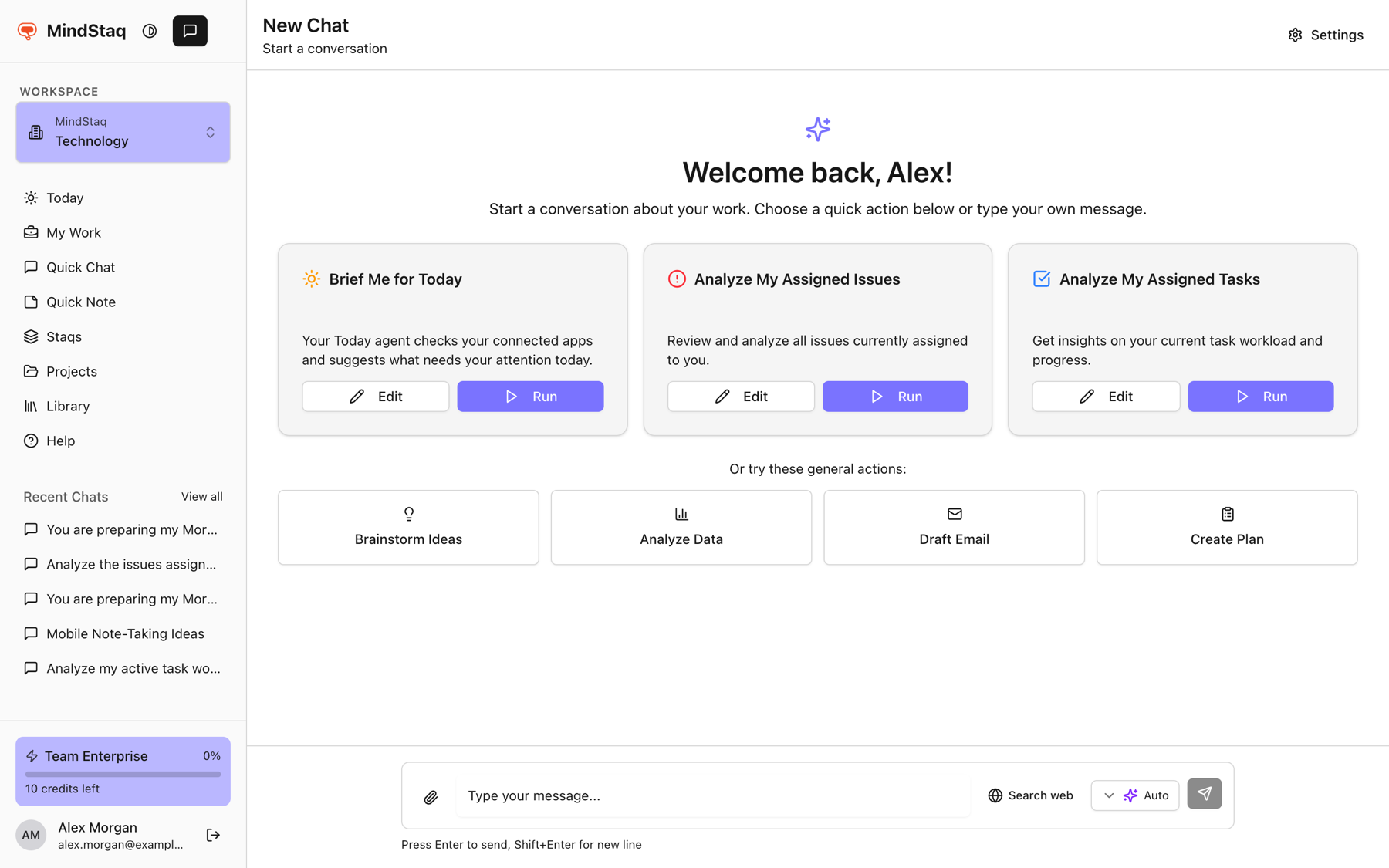
Open a new chat. Choose Quick Chat in the sidebar, or the chat button at the top of the sidebar (tooltip New Chat). If you land on the sign-in page, sign in and you are returned here.
-
Write your message. Type in the box that says "Type your message...". Press Enter to send, or Shift+Enter for a new line.
-
Add anything extra. Use the paperclip (Attach files) to attach files, Search web to allow a web search for this message, and the tier button to choose Auto, Quick, Balanced, or Deep.
-
Find the thread later. Your latest chats appear under Recent Chats in the sidebar. View all opens All Chats.
Expected result
Your message is sent and the reply streams in. The chat is saved in the workspace you were in.
Tips
- Start from a project or staq to chat with that context. See Add project, task, issue, note, or file context.
- Rename a chat with the pencil next to its title.
Troubleshooting
- You are sent to the sign-in page. Your session may have expired. Sign in again and retry.
- The message box is disabled. Your credit allowance may have been reached. See Understand smart model routing and credits.
- A chat is missing from the sidebar. Chats belong to a workspace. Switch to the workspace where you started it.
Related guides
- Start with a goalWrite your first message as an outcome so the assistant can plan, ask the right questions, and deliver something usable.
- Add project, task, issue, note, or file contextGive a session the right background by starting it from a project, staq, task, or issue, or by attaching files.
- Attach PDFs, Office files, and imagesAttach up to five files to a message so the assistant can read, summarise, and answer questions about them.
- Continue a previous sessionReopen an earlier chat, resume it, and manage whether it is active, paused, blocked, or done.
- Create a projectGroup tasks, issues, notes, documents, and chats for a piece of work in one project.
Email [email protected] and tell us what you were trying to do.
Email supportSpotted a mistake or something out of date? Report a problem with this guide. No email app? Write to [email protected] and name this guide.