Create a project
Group tasks, issues, notes, documents, and chats for a piece of work in one project.
Set up a project so your tasks, issues, notes, documents, and AI chats live together.
What you need
- Access to a workspace.
Steps
-
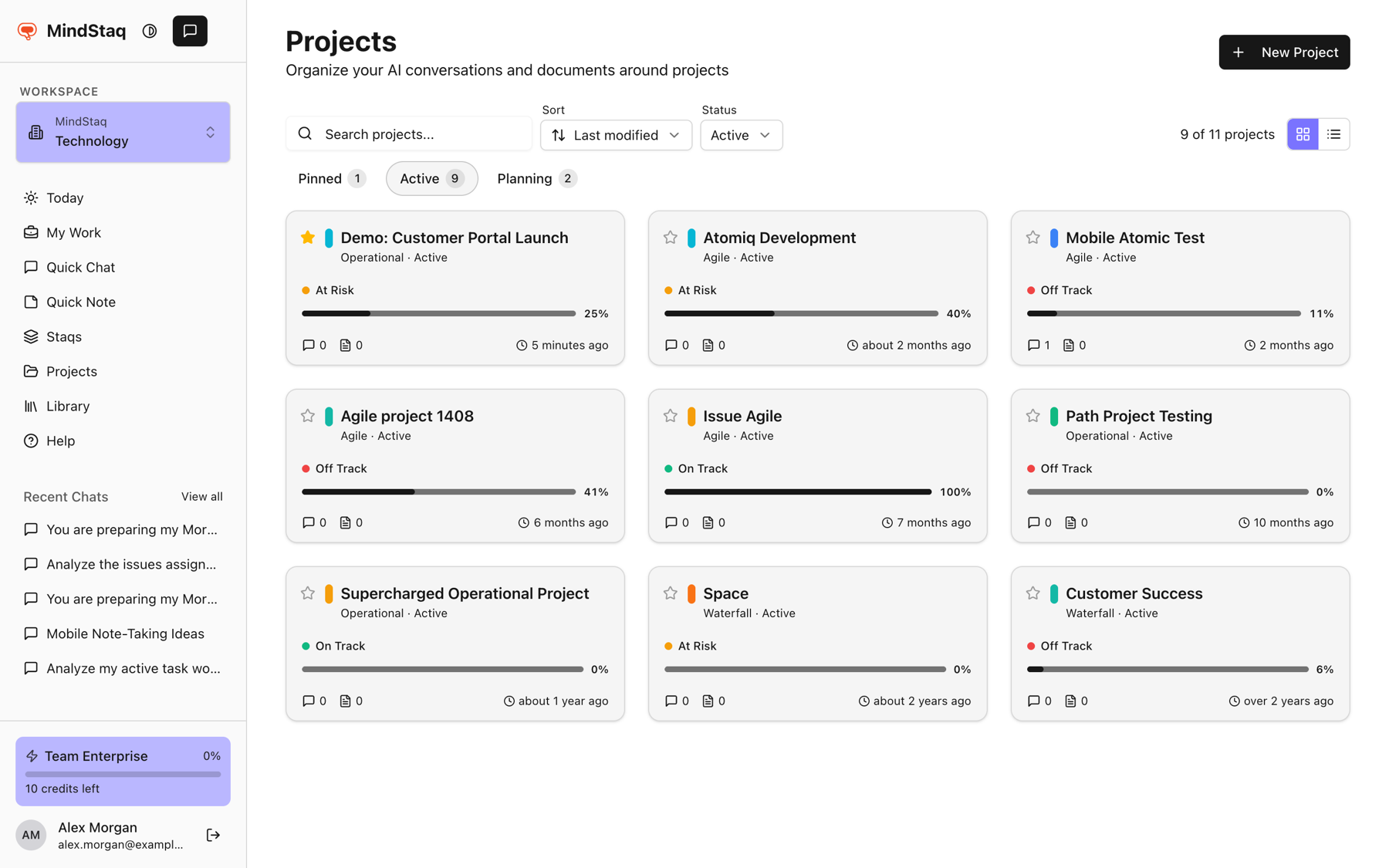
Open Projects. Choose Projects in the sidebar.
-
Start the form. Choose New Project (or Create Your First Project if the list is empty).
-
Fill in the details. In Create New Project, enter Project Name (required), an optional Description, and an optional Project Charter (Optional). Choose Create Project.
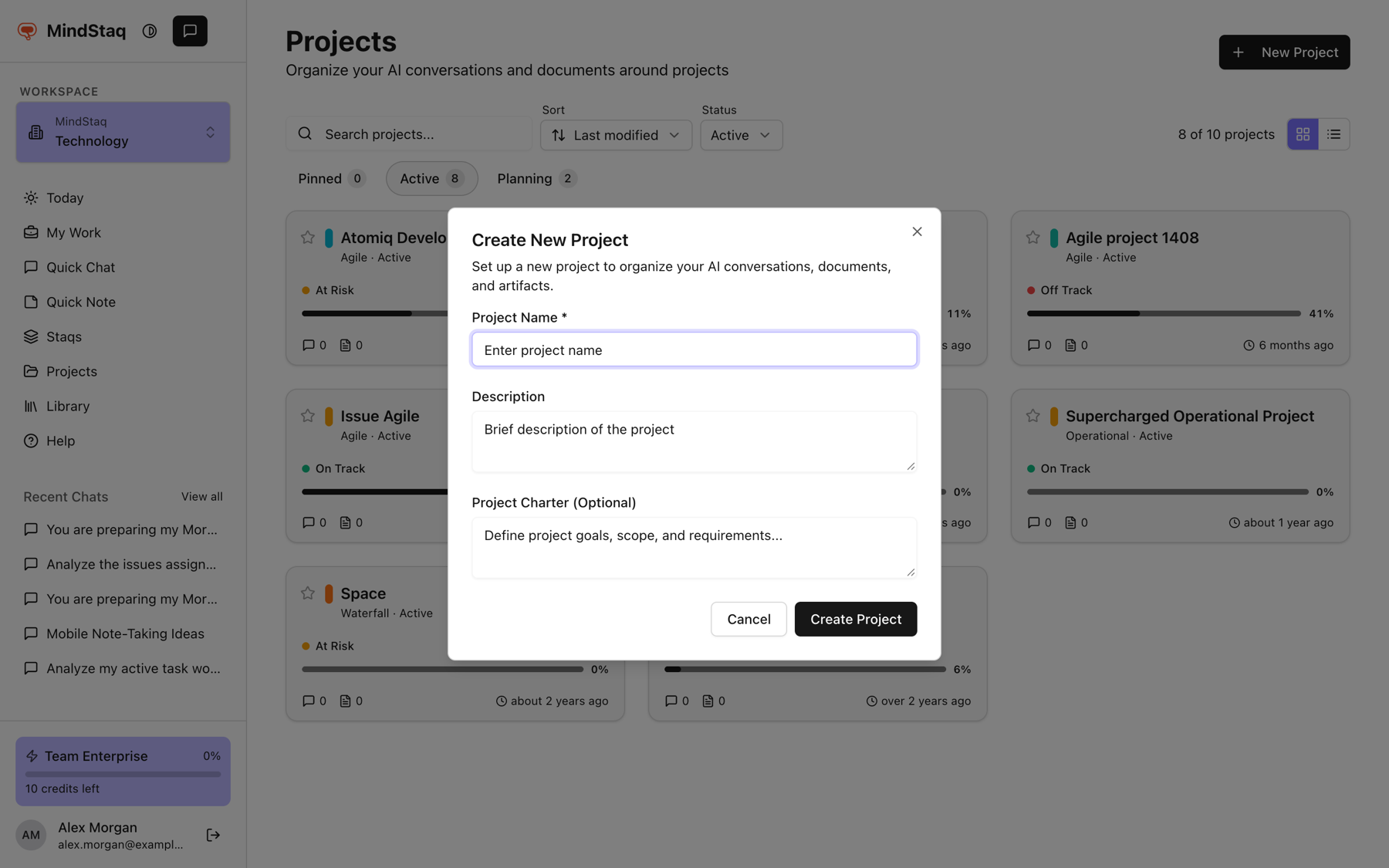
-
Find it on the Planning tab. New projects open under Planning in your project list. Select the project to open it.
-
Activate it when ready. If you can edit the project, open Settings, find Change project status, choose Activate, then Save changes. Planning projects are visible only to the project lead, project managers, and others who can edit the project.
Expected result
The project opens on the Overview tab. Depending on your workspace, you also see tabs for Tasks, Issues, Chats, Notes, Documents, Members, and Settings.
Tips
- Star a project in the list to pin it. Pinned projects show under Pinned and in Favourite projects on My Work (up to 6).
- Use the filters Active and Archived, and the tabs Pinned, Active, Planning to find projects.
- You can also ask the assistant to create a project from a chat. See Turn an answer into work.
- Tasks, issues, and members need a workspace with the full project features. See Create task groups and tasks.
Troubleshooting
- My new project is not in the Active tab: it starts in Planning. Look under Planning.
- I cannot see Tasks, Issues, or Members: your workspace may not include those project features. Ask your workspace admin or contact support.
- I cannot see Settings: Settings appear only for people who can edit the project. See Project roles.
Related guides
- Create task groups and tasksBreak a project into task groups and tasks, with owners, priorities, and dates.
- Add people to a projectAdd workspace members to a project, change their role, or remove them.
- Link work back to a project or sessionKeep chats, tasks, issues, notes, and documents connected to the project or session they came from.
- Start a chat in WorkAsk a question, attach files, and keep the conversation in your workspace.
- Turn an answer into a note, document, task, issue, or project planSave an answer as a note or ask the assistant to create documents, tasks, issues, and project plans from it.
Email [email protected] and tell us what you were trying to do.
Email supportSpotted a mistake or something out of date? Report a problem with this guide. No email app? Write to [email protected] and name this guide.