Add project, task, issue, note, or file context
Give a session the right background by starting it from a project, staq, task, or issue, or by attaching files.
Start a session where the work lives so the assistant already knows about it.
What you need
- Access to the project or staq, or a task or issue you can open.
Steps
Start from a project or staq
-
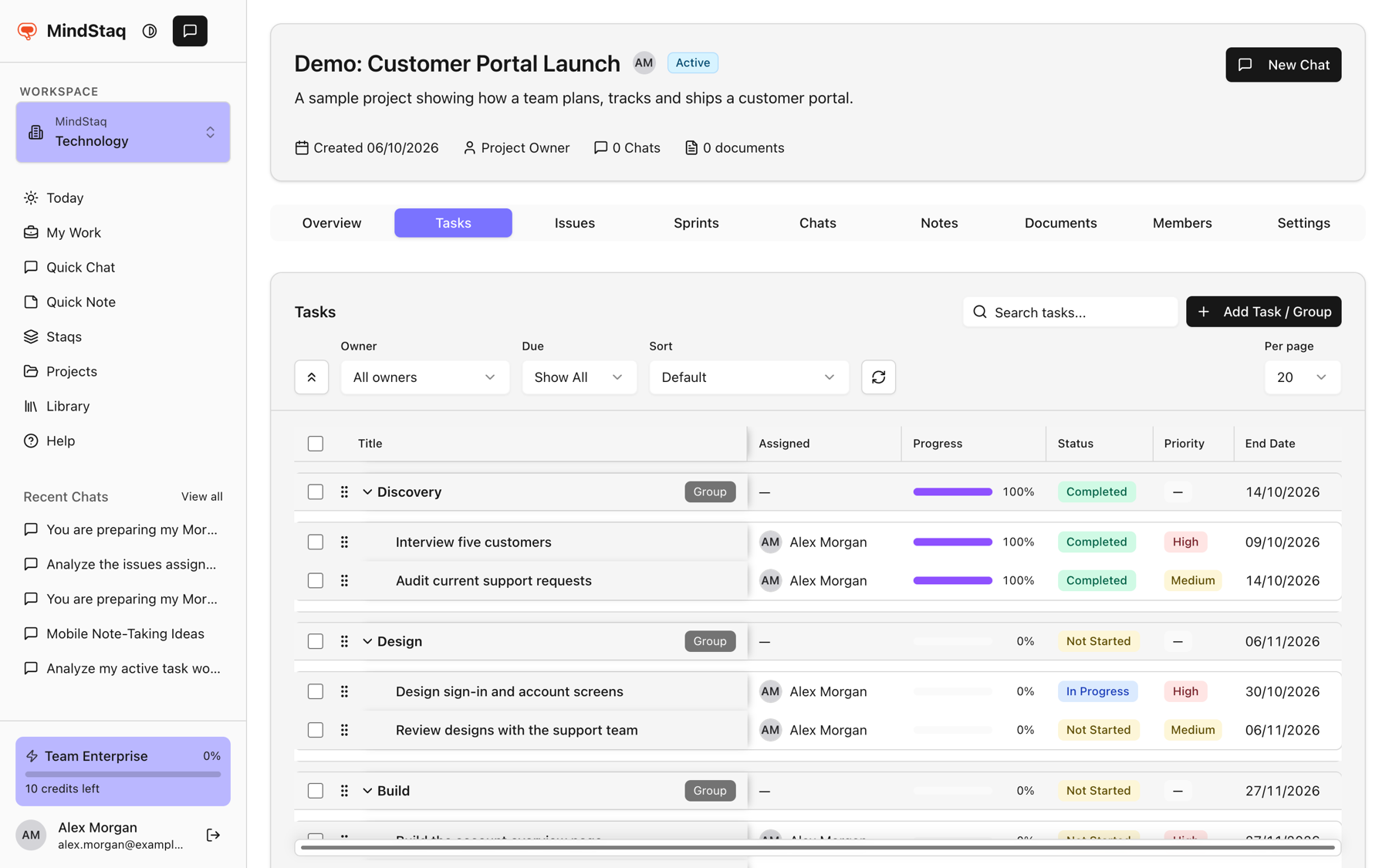
Open Projects (or Staqs) and open the one you want.
-
Choose New Chat. The chat is created inside that project or staq and shows Project: <name> or Staq: <name> under its title.
Start from a task or issue
-
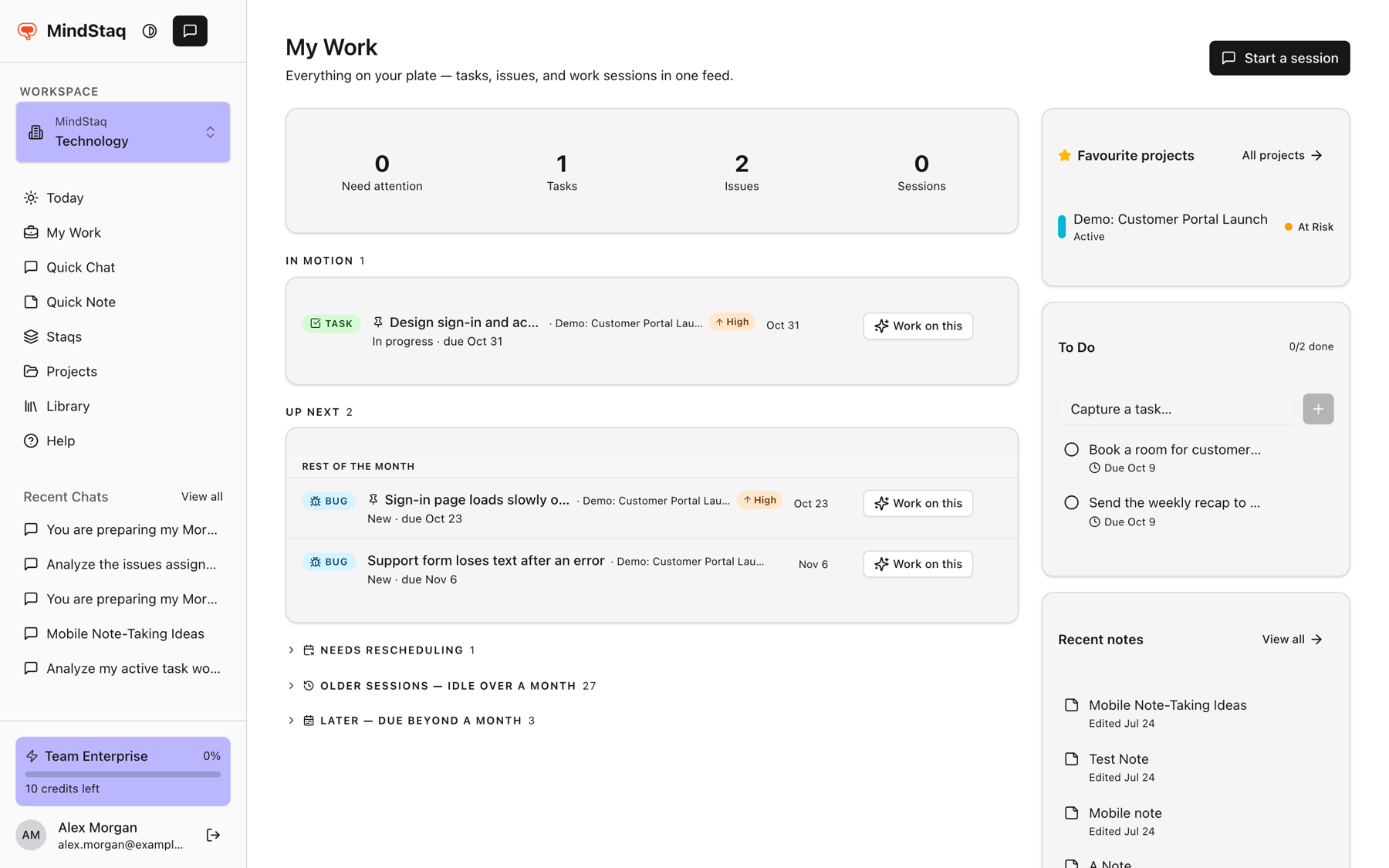
Find the task or issue in My Work, Today, or your To Do list.
-
Choose Work on this (the To Do list uses the tooltip Work on this in a chat). A session opens, and the assistant gets the item's details and starts with a first message about it.
Move a loose chat into a project or staq
- In an existing Quick Chat, choose Settings in the header.
- In Chat Settings, choose Move to project or staq, pick a destination, and choose Move.
Bring in notes and other work
Ask for it by name, for example "Summarise my note called ..." or "What are my open issues?". The assistant can look up your tasks, issues, projects, and notes, and an activity panel under the reply (for example Activity complete) shows what it did.
Expected result
Answers refer to the project, item, or note you chose.
Tips
- Files you attach stay with the chat. See Attach PDFs, Office files, and images.
- A chat started inside a project can read more of that project than a Quick Chat can.
Troubleshooting
- The assistant does not know about my project. Make sure the chat shows Project: under its title; if not, use Move to project or staq.
- Move to project or staq is missing. It appears only for chats not already in a project or staq.
- You cannot see a project. You may not be a member. See Add people to a project.
Related guides
- Attach PDFs, Office files, and imagesAttach up to five files to a message so the assistant can read, summarise, and answer questions about them.
- Turn an answer into a note, document, task, issue, or project planSave an answer as a note or ask the assistant to create documents, tasks, issues, and project plans from it.
- Link work back to a project or sessionKeep chats, tasks, issues, notes, and documents connected to the project or session they came from.
- Understand workspace scoping and accessLearn why your projects, chats, and work depend on the workspace you are in, and what workspace and project roles control.
Email [email protected] and tell us what you were trying to do.
Email supportSpotted a mistake or something out of date? Report a problem with this guide. No email app? Write to [email protected] and name this guide.