Use project, task, and issue message threads
Keep conversation and status updates next to the project, task, or issue they are about.
Messages are saved work assets attached to a project, task, or issue, so the discussion stays with the work. The AI assistant can post to the same threads for you.
What you need
- Membership in the project.
- For task and issue threads: a task or issue in a project (personal tasks have no message thread).
Steps
Talk on a task or issue
-
Open the item. On the project's Tasks or Issues tab, select the title.
-
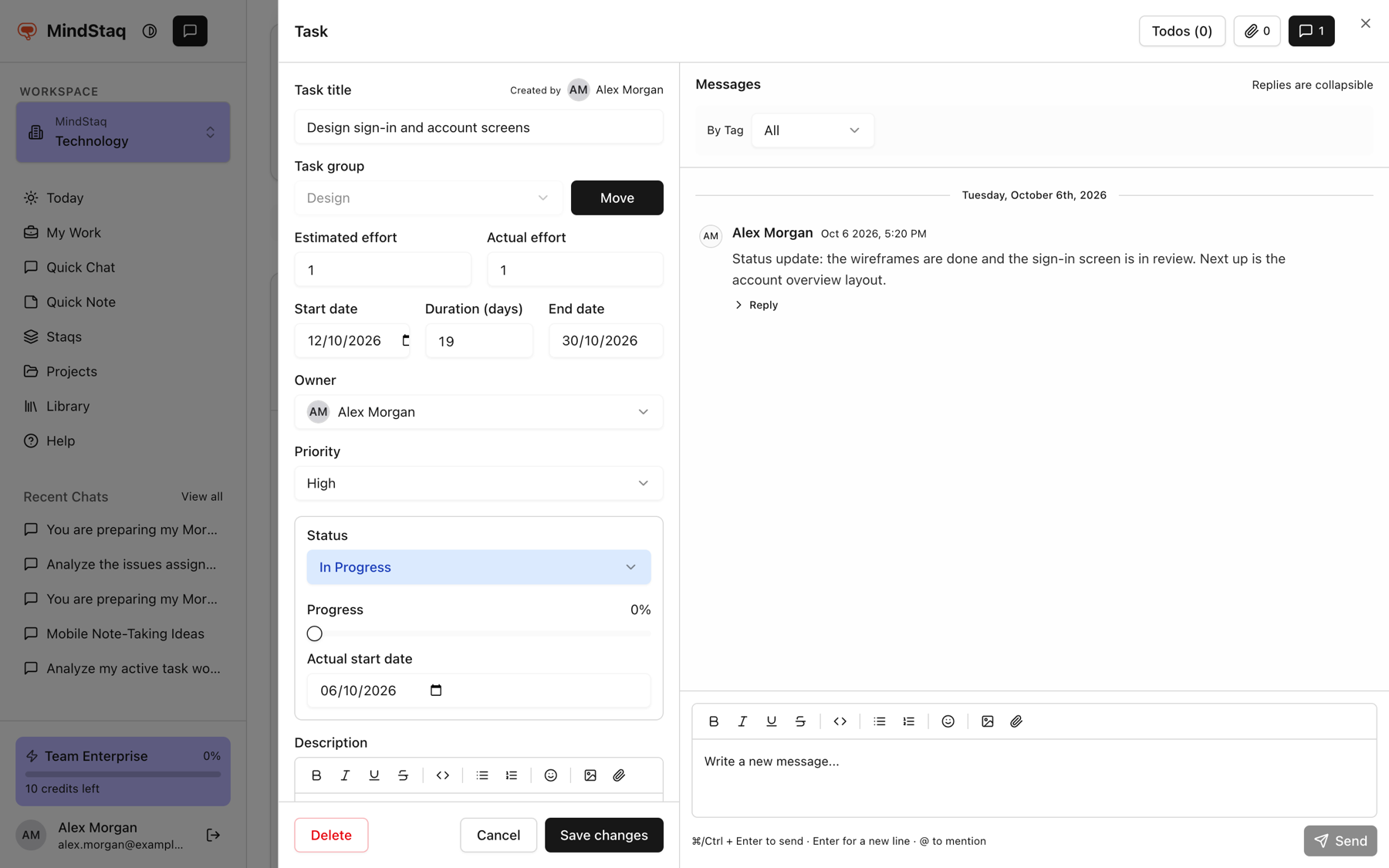
Open Messages. Choose the messages button (it shows a count, and a dot when there is something unread).
-
Write. In Write a new message..., type your message and choose Send. Use @ to mention a project member.
-
Reply. Choose Reply or the reply count under a message, write in Reply to thread..., and choose Reply.
-
Post a status update. When you change a task's or issue's status or progress, tick Post status update, add a topic, and write the update. It is posted to the thread tagged Status Report.
Talk in the project channel
- Open Messaging. Use the Open in Messaging link on an assistant result card, or open Messaging from your workspace.
- Pick the project under Projects in the sidebar.
- Start a conversation. Choose the + button (Start a new conversation), pick a Conversation Type, enter a Subject / Topic, optionally add a body, and send.
- Reply in the thread panel that opens. See Join a project channel.
Expected result
Your message appears in the thread with your name and time. Replies group under the original message.
Tips
- Edit or delete your own messages from Message options. A deleted message shows "This message has been deleted by the sender." with an Undo link.
- In a task or issue thread, By Tag filters messages by tag.
- Ask the assistant to post a decision, update, or risk to a thread; the result card says where it was posted and links to Messaging. See Turn an answer into work.
- Tag messages so they are easy to find. See Tag decisions, status reports, and risks.
Troubleshooting
- I do not see a messages button: you may have opened a personal task, or a task that is not in a project.
- I cannot find the project channel: you must be on the project. See Add people to a project.
Related guides
- Tag decisions, status reports, risks, blockers, requirements, and feedback in threadsLabel conversations in Messaging so decisions, updates, and risks are easy to find and filter.
- Join a project channelOpen a project's channel in Messaging, start a tagged conversation, and reply in threads.
- Create task groups and tasksBreak a project into task groups and tasks, with owners, priorities, and dates.
- Track issues, risks, and blockersLog what is going wrong or at risk in a project, assign it, and follow it to resolution.
- Add people to a projectAdd workspace members to a project, change their role, or remove them.
- Turn an answer into a note, document, task, issue, or project planSave an answer as a note or ask the assistant to create documents, tasks, issues, and project plans from it.
- Link work back to a project or sessionKeep chats, tasks, issues, notes, and documents connected to the project or session they came from.
Email [email protected] and tell us what you were trying to do.
Email supportSpotted a mistake or something out of date? Report a problem with this guide. No email app? Write to [email protected] and name this guide.