Create task groups and tasks
Break a project into task groups and tasks, with owners, priorities, and dates.
Build the plan for a project as task groups that hold tasks, so each piece of work has an owner and a date.
Task groups and tasks are shown on projects in workspaces that include the full project features. If your project has no Tasks tab, see Troubleshooting.
What you need
- A project. See Create a project.
- Permission to add tasks. Project Owners and Project Managers can add tasks and task groups. A Team Member can add tasks only inside a task group they own.
Steps
-
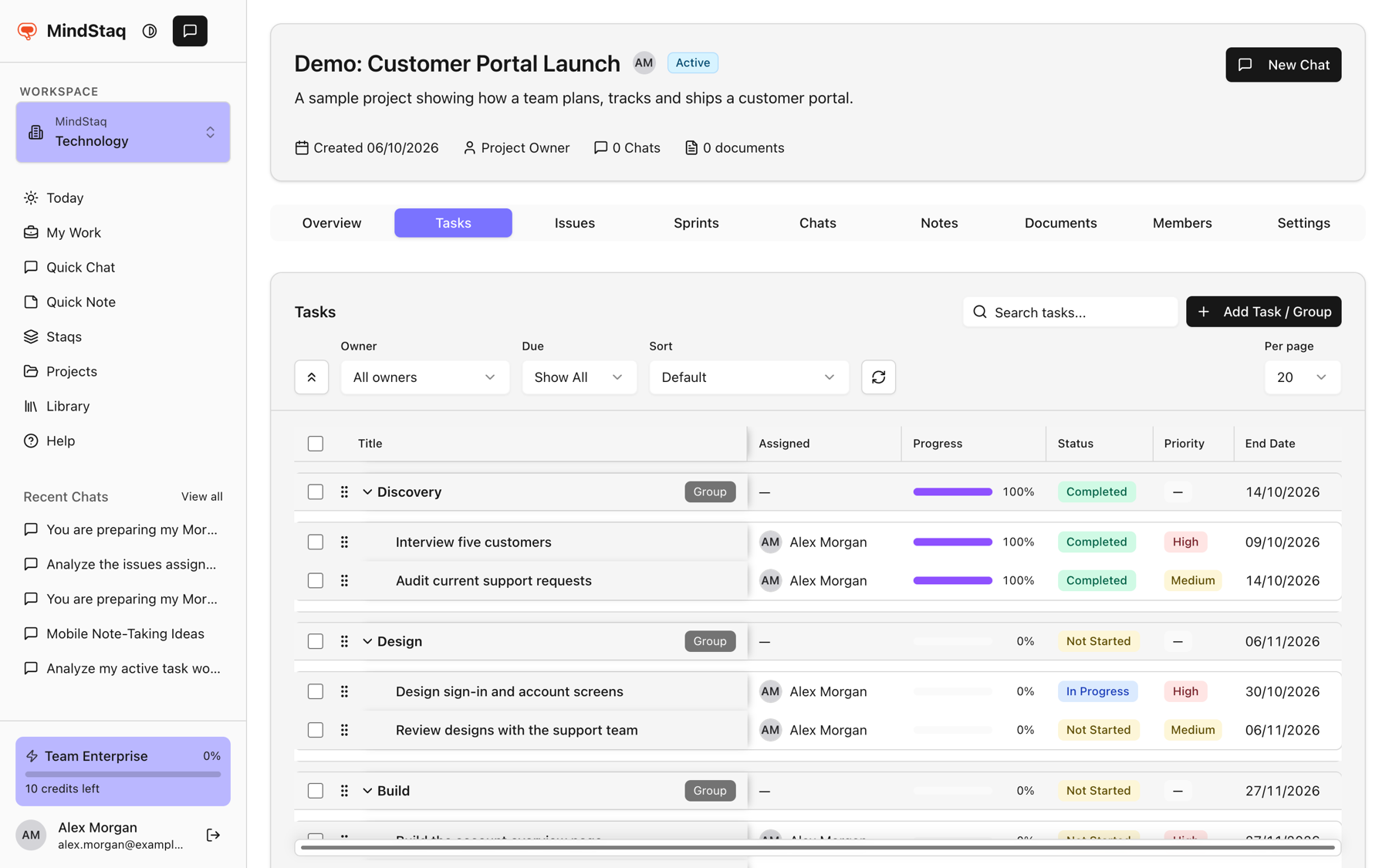
Open the Tasks tab. Open the project and choose Tasks.
-
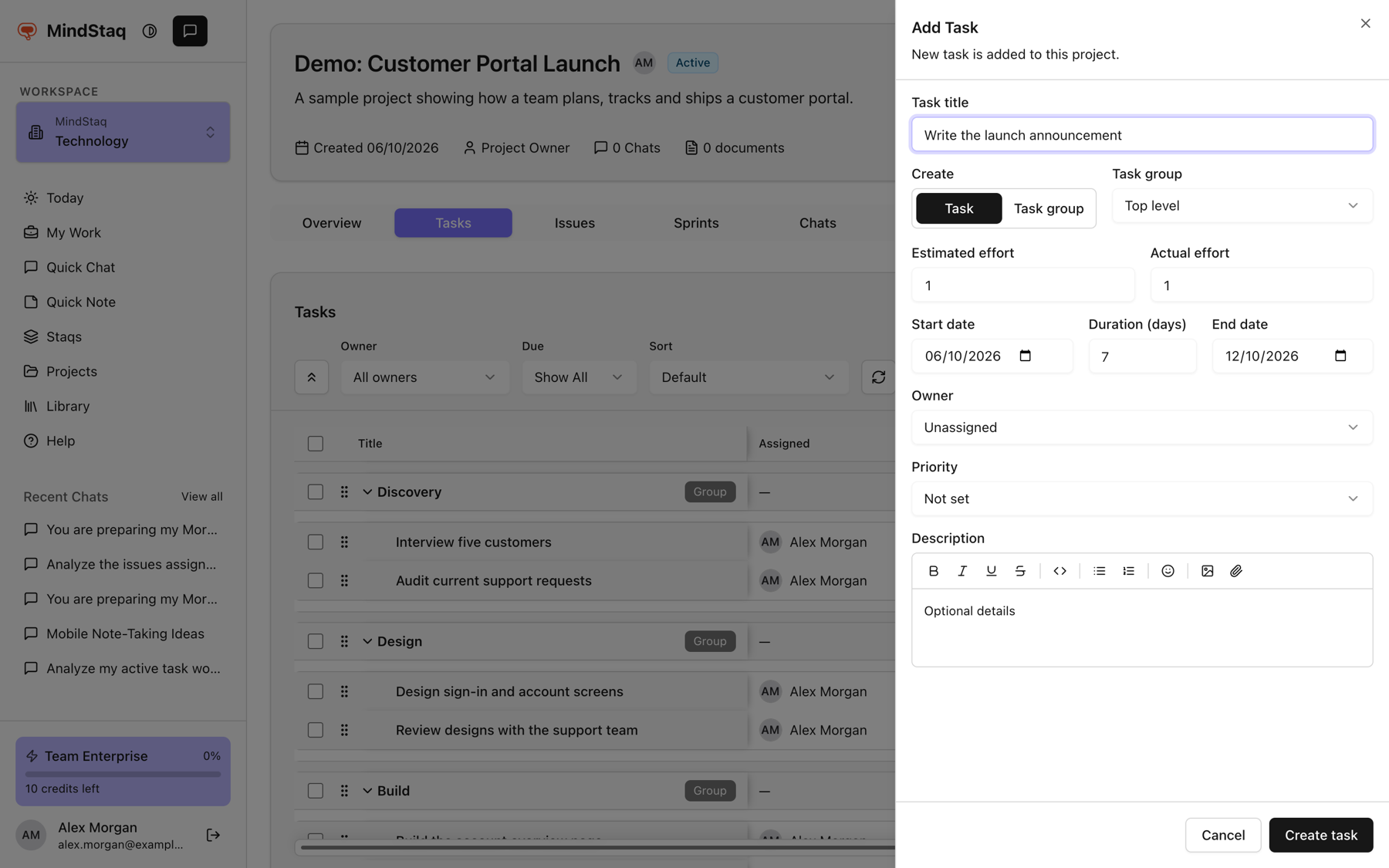
Add an item. Choose Add Task / Group. The panel opens.
-
Choose what to create. Under Create, choose Task or Task group.
-
Place it. Use Task group to pick a parent group, or Top level.
-
Name it. Enter the title, then set Owner, Priority (Not set, Low, Medium, High), Start date, Duration (days), and End date. Add a Description if useful.
-
Save. Choose Create task or Create task group.
-
Update progress later. Select a task title to edit it. Change Status (Backlog, Not Started, In Progress, Completed) and, when the status changes, you can tick Post status update to add a topic and message to the task's thread.
Expected result
The task or group appears in the list, nested under its parent. You can search, filter by owner or date, sort, and select several rows for bulk actions.
Tips
- Open an existing task to use Todos for a checklist, the attachments button for files and links, and the messages button for its thread. See Use message threads.
- A task needs an Owner before it can move to In Progress or Completed.
- The assistant can create task groups and tasks from a chat that is inside the project. See Turn an answer into work and Start with a goal. Tasks it creates appear in the same list.
- Tasks assigned to you also show in My Work.
Troubleshooting
- There is no Tasks tab: your workspace may not include these project features. Ask your workspace admin or contact support.
- There is no Add Task / Group button: you may not be a Project Owner or Project Manager. See Project roles.
Related guides
- Create a projectGroup tasks, issues, notes, documents, and chats for a piece of work in one project.
- Track issues, risks, and blockersLog what is going wrong or at risk in a project, assign it, and follow it to resolution.
- Assign owners and reviewersGive every task and issue an owner, and understand what owners, task group owners, and issue reviewers can do.
- Understand Project Owner, Project Manager, and Team Member rolesSee what each project role can see and change, and how task group owners and issue reviewers get extra rights.
- Turn an answer into a note, document, task, issue, or project planSave an answer as a note or ask the assistant to create documents, tasks, issues, and project plans from it.
- Start with a goalWrite your first message as an outcome so the assistant can plan, ask the right questions, and deliver something usable.
- Use My Work as the Today command centerSee everything on your plate in one feed, spot what needs attention, and decide what goes onto Today.
Email [email protected] and tell us what you were trying to do.
Email supportSpotted a mistake or something out of date? Report a problem with this guide. No email app? Write to [email protected] and name this guide.