Link work back to a project or session
Keep chats, tasks, issues, notes, and documents connected to the project or session they came from.
AI work is saved as living work assets, such as plans, tasks, issues, notes, documents, and messages. This guide shows how to keep them linked to the project or session they belong to so you can find them and continue later.
What you need
- A project, or a session you want to connect to one.
Steps
Start a session inside a project
-
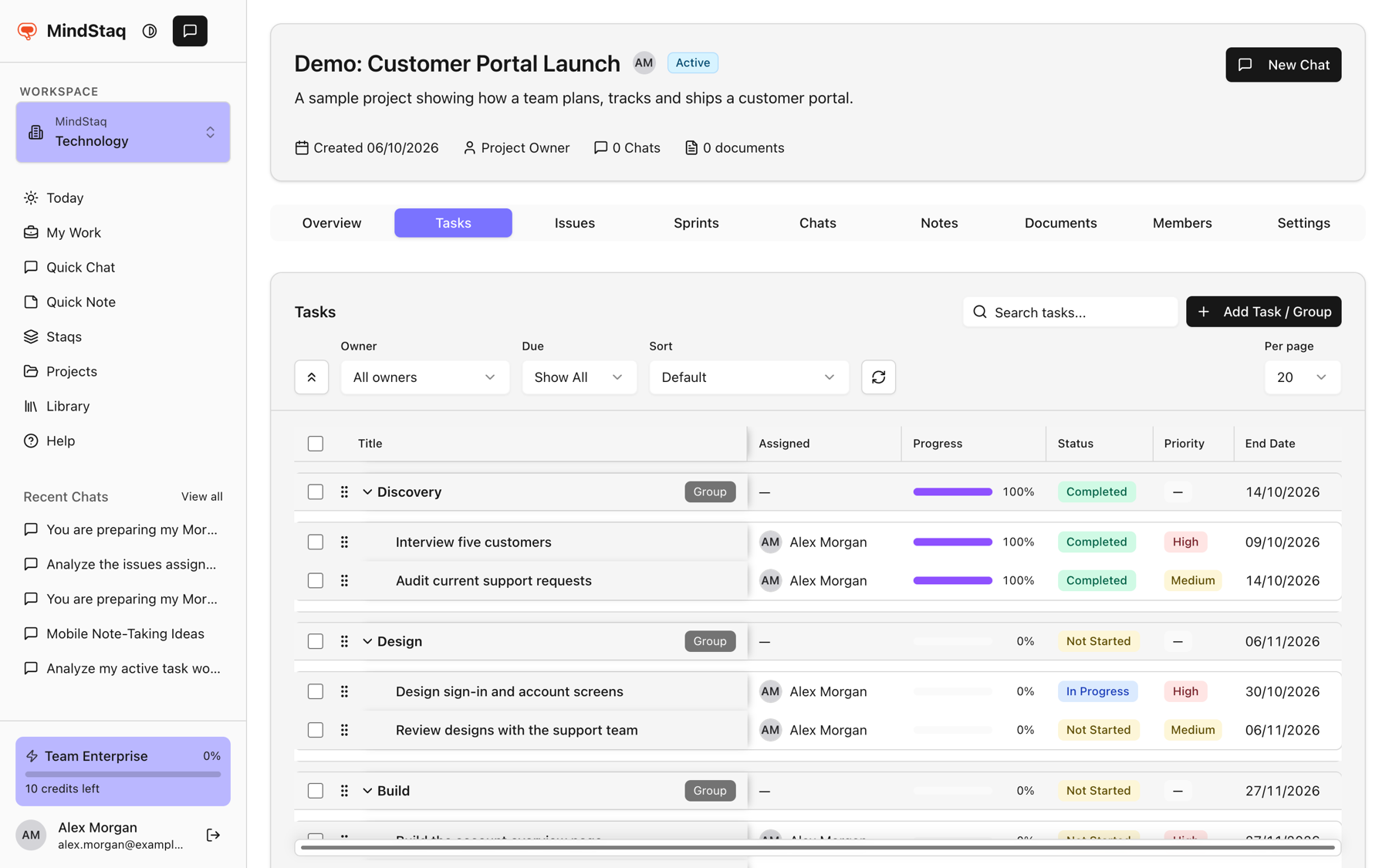
Open the project and choose New Chat (or the New Chat button on its Chats tab).
-
Work in that chat. Tasks, issues, notes, and documents the assistant creates for this project are saved in the project. See Turn an answer into work.
Start a session from an existing task or issue
- In My Work or Today, find the task or issue.
- Choose Work on this. A session opens with the item attached as context. If a session already exists for it, the button reads Resume, so you do not create a duplicate.
Move an unlinked chat into a project
- Open the chat and look at the details panel.
- Choose Move to project or staq, pick the project or staq, and choose Move. The button appears only for chats that are not already in a project or staq.
Save an answer to a project
- Under an assistant reply, choose Save as Note.
- Under Save to (optional), pick a project (or a staq) and save.
Find linked work later
- Project tabs: Chats, Notes, Documents, Tasks, Issues.
- Sidebar: Recent Chats (choose View all for the full list).
- My Work: sessions and linked items, with Resume for each.
Expected result
The chat, note, or item appears inside the project and is easy to resume from My Work, Today, or the project.
Tips
- Everything is scoped to the workspace you are in. See Understand workspace scoping and access.
- Add a project, task, issue, or note as context at the start of a session. See Add context to a session and Start with a goal.
- Continue where you stopped with Continue a previous session.
Troubleshooting
- The Move button is missing: the chat is already in a project or staq.
- I cannot find a chat: chats belong to a workspace. Switch to the workspace where you started it.
Related guides
- Use notes and documents as living work assetsCapture notes, create documents and presentations, and keep AI-written output attached to your projects.
- Continue a previous sessionReopen an earlier chat, resume it, and manage whether it is active, paused, blocked, or done.
- Turn an answer into a note, document, task, issue, or project planSave an answer as a note or ask the assistant to create documents, tasks, issues, and project plans from it.
- Add project, task, issue, note, or file contextGive a session the right background by starting it from a project, staq, task, or issue, or by attaching files.
- Start with a goalWrite your first message as an outcome so the assistant can plan, ask the right questions, and deliver something usable.
- Create a projectGroup tasks, issues, notes, documents, and chats for a piece of work in one project.
- Use My Work as the Today command centerSee everything on your plate in one feed, spot what needs attention, and decide what goes onto Today.
Email [email protected] and tell us what you were trying to do.
Email supportSpotted a mistake or something out of date? Report a problem with this guide. No email app? Write to [email protected] and name this guide.