Understand Project Owner, Project Manager, and Team Member roles
See what each project role can see and change, and how task group owners and issue reviewers get extra rights.
AvailableLast reviewed 2026-10-05
Every person on a project has one of three roles. The role decides who can change the plan, the members, and the settings.
The roles
- Project Owner. The person who created the project, marked with a Creator badge. Owners have the same rights as Project Managers, and cannot be removed or have their role changed.
- Project Manager. Described in the product as "Can edit the plan, members and settings".
- Team Member. Described in the product as "Works on assigned tasks and issues".
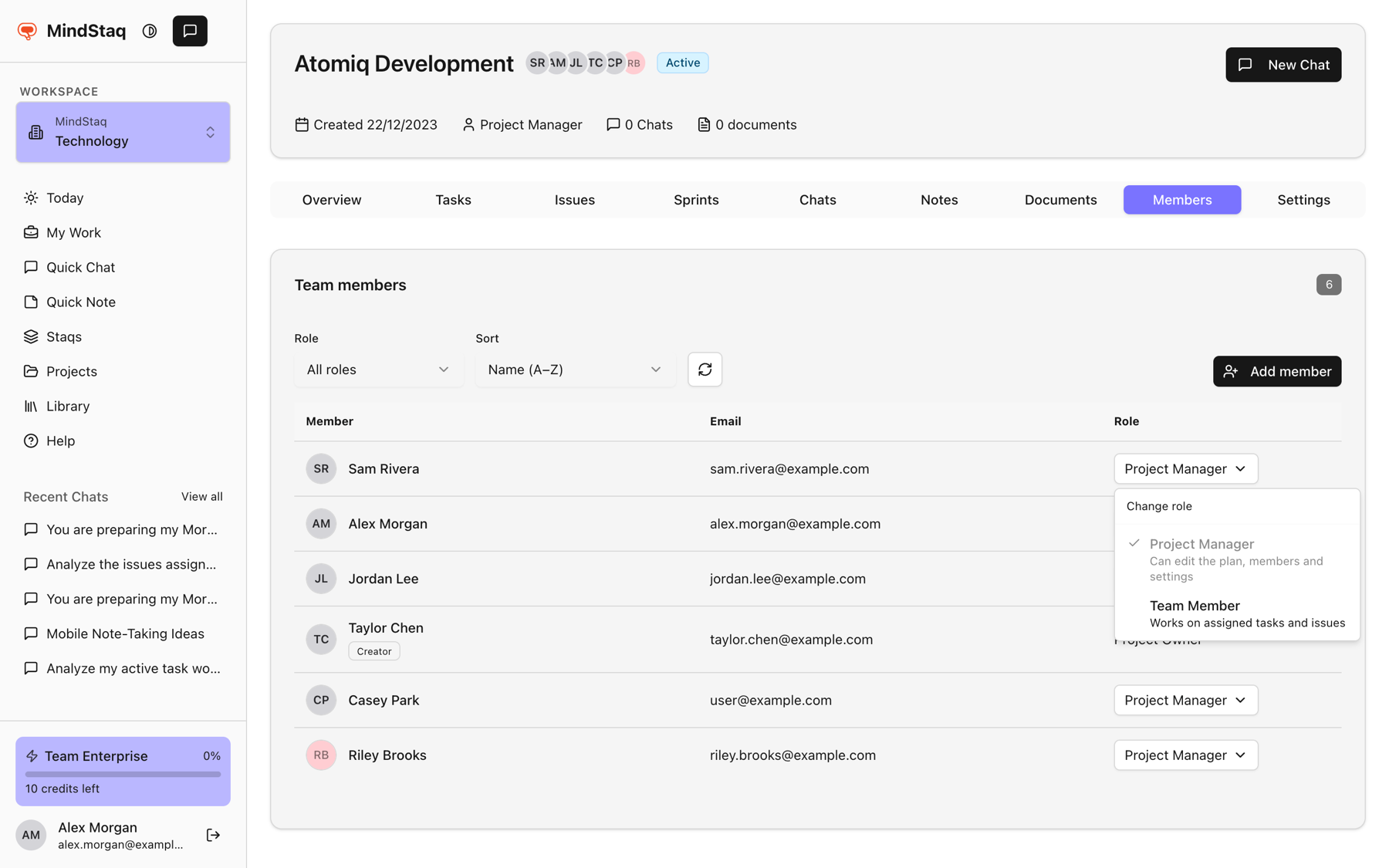
What each role can do
| Project Owner and Project Manager | Team Member | |
|---|---|---|
| See the project, tasks, issues, notes | Yes | Yes |
| Create task groups and tasks | Yes | Only inside a task group they own |
| Edit, reorder, and delete tasks | Yes | Edit tasks assigned to them; change status on their own tasks |
| Create issues | Yes | No |
| Edit and delete issues | Yes | Edit issues assigned to them or that they review |
| Create notes | Yes | Yes |
| Edit and delete notes | Yes | Notes they created |
| Manage members and roles | Yes | No |
| Edit project settings, activate, archive, delete | Yes | No |
| Manage sprints | Yes | No |
| Post and reply in message threads | Yes | Yes |
How to check your role
Open the project. Your role is shown in the header next to the created date, and the Members tab lists everyone's role.
Tips
- A task group owner can manage everything inside that group, including nested groups, which is how a manager delegates part of a plan.
- Roles apply per project. Your workspace role (Owner, Admin, Member, Guest) is separate. See Understand workspace scoping and access.
- Change roles in Add people to a project.
Troubleshooting
- A button or field is missing: your role may not allow it. Ask a Project Manager.
- I cannot find my role: the Members tab is not shown in every workspace. The role in the project header still applies.
Related guides
- Add people to a projectAdd workspace members to a project, change their role, or remove them.
- Assign owners and reviewersGive every task and issue an owner, and understand what owners, task group owners, and issue reviewers can do.
- Create task groups and tasksBreak a project into task groups and tasks, with owners, priorities, and dates.
- Track issues, risks, and blockersLog what is going wrong or at risk in a project, assign it, and follow it to resolution.
- Use notes and documents as living work assetsCapture notes, create documents and presentations, and keep AI-written output attached to your projects.
- Understand workspace scoping and accessLearn why your projects, chats, and work depend on the workspace you are in, and what workspace and project roles control.
Still need help?
Email [email protected] and tell us what you were trying to do.
Email supportSpotted a mistake or something out of date? Report a problem with this guide. No email app? Write to [email protected] and name this guide.