Open a document in Reader
Read a note or document in the focused Reader view and find recent items and your notebook.
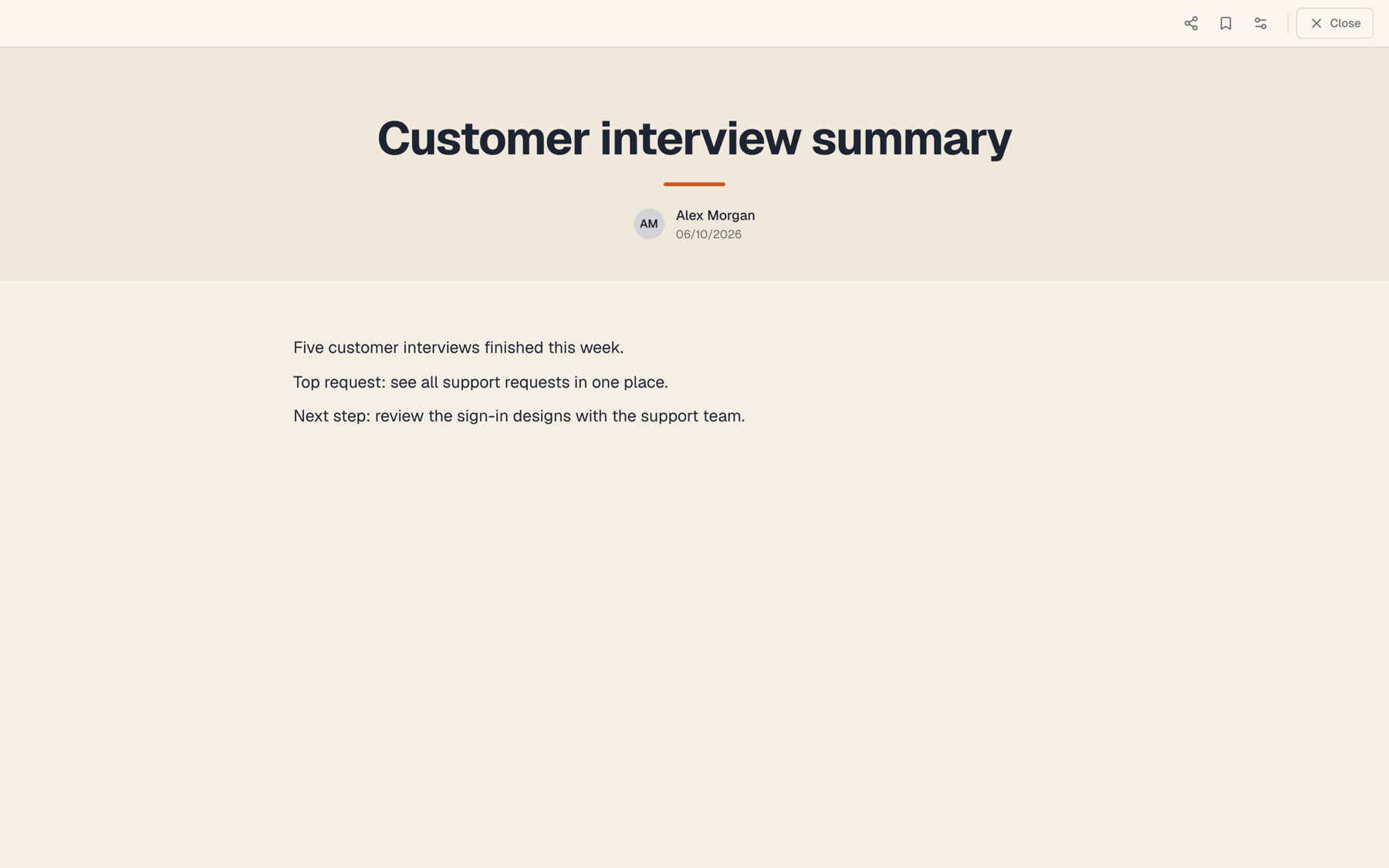
Reader is a focused, read-first view for notes, documents, and presentations stored in your workspace.
What you need
- Access to the workspace that holds the item.
Steps
-
Open it from where you found it. On a note card, choose Read. On a document card or an assistant result card, choose Read; for a presentation, Present. In Reader's Notebook, choose Open in Reader.
-
Or go to Reader directly. Reader has two tabs: Home and Notebook. Check that the workspace shown is the one you expect.
-
Use Home. Recently Viewed lists items you opened (switch between card and list view), and the reading list on the right keeps items you saved. Choose the reading-list button on an item to add or remove it.
-
Use Notebook. Pick All Notes, a project, or a staq, select a note to preview it, then choose Open in Reader. Edit appears for notes you own.
Expected result
The item opens in Reader. Opened items appear under Recently Viewed.
Tips
- Create and edit content in Morpheus; use Reader to read and present. See Use notes and documents.
- Notes and documents have a share action that copies a public link.
Troubleshooting
- Read is greyed out: Reader is not available from your environment. Contact support.
- The item is missing: it may be in another workspace or a project you are not on. Switch workspaces and look again. See Understand workspace scoping and access.
- Reader's search button does nothing: search is not available in Reader today. Use the Notebook sections or the Library in Morpheus.
Related guides
- Use notes and documents as living work assetsCapture notes, create documents and presentations, and keep AI-written output attached to your projects.
- Link work back to a project or sessionKeep chats, tasks, issues, notes, and documents connected to the project or session they came from.
- Create a projectGroup tasks, issues, notes, documents, and chats for a piece of work in one project.
- Turn an answer into a note, document, task, issue, or project planSave an answer as a note or ask the assistant to create documents, tasks, issues, and project plans from it.
Email [email protected] and tell us what you were trying to do.
Email supportSpotted a mistake or something out of date? Report a problem with this guide. No email app? Write to [email protected] and name this guide.