Use notes and documents as living work assets
Capture notes, create documents and presentations, and keep AI-written output attached to your projects.
Notes and documents are saved work assets, not disposable chat: you can create them yourself or keep what the AI writes, and find them again in your Library or in a project.
What you need
- Access to a workspace. Notes, documents, and presentations belong to the workspace you are in.
Steps
Write a note
-
Start a quick note. Choose Quick Note in the sidebar. A full-screen editor opens.
-
Write. Add a title and start typing. The note is created when you begin and saves automatically.
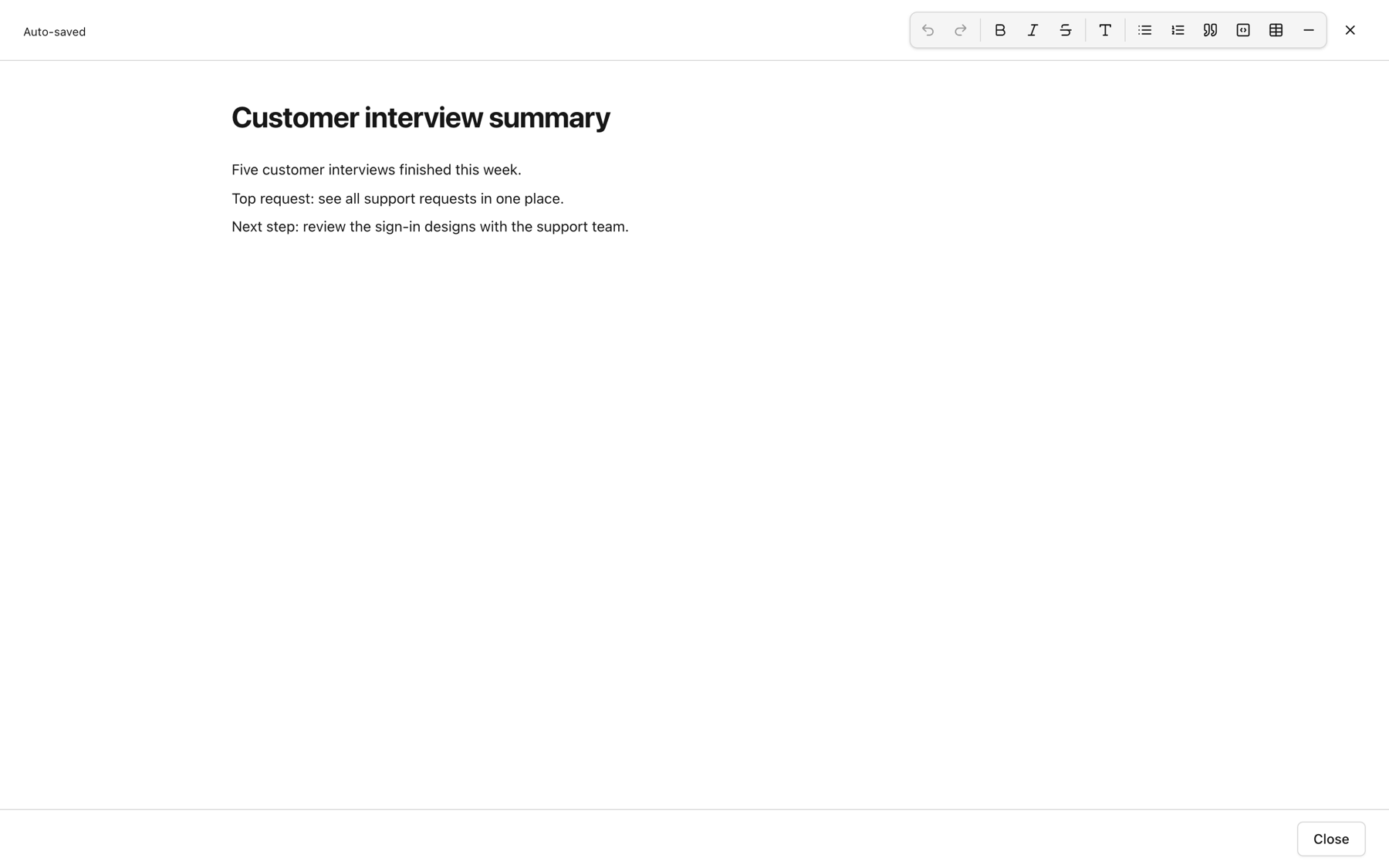
-
Close the editor to return to where you were.
Keep an AI answer as a note
- Under an assistant reply, choose Save as Note.
- Set the Note title and, optionally, choose where to save it under Save to (optional): a project or a staq. Choose Save as Note.
Notes in a project
- Open the project and choose Notes.
- Choose New Note. Use the search, sort, and filter (All Notes, My Notes, Shared) to find notes.
- On a note card, Read opens it in Reader, Edit edits it, Peek previews it, and the share and delete icons copy a public link or remove it.
Documents and presentations in a project
- Open the project and choose Documents.
- Choose New Document or New Presentation. The document editor opens. Documents the assistant creates for you open in the same editor. On a document card, Editor opens the editor, Read (or Present for a presentation) opens Reader, and the link icon copies a public Reader link.
Browse everything
Choose Library in the sidebar and switch between Notes and Documents for the whole workspace.
Expected result
Your note or document is saved in the workspace and listed in the Library and, if saved to one, in its project.
Tips
- Ask the assistant to create a note or document directly. See Turn an answer into work and Export structured output to Word.
- Add a note or document as context when you start a session. See Add context to a session.
- To read in a focused view, see Open a document in Reader.
- Creating notes in a project depends on your project role. See Project roles.
Troubleshooting
- I cannot find a note: it may be in another workspace, or in a project you are not on. See Understand workspace scoping and access.
- There is no Delete or Edit on someone else's note: you can edit or delete notes you created. Project Owners and Project Managers can edit and delete notes in their project.
- Read is greyed out: the Reader link is not available in your environment. Contact support.
Related guides
- Open a document in ReaderRead a note or document in the focused Reader view and find recent items and your notebook.
- Link work back to a project or sessionKeep chats, tasks, issues, notes, and documents connected to the project or session they came from.
- Turn an answer into a note, document, task, issue, or project planSave an answer as a note or ask the assistant to create documents, tasks, issues, and project plans from it.
- Export structured output to WordAsk the assistant to turn a report, plan, or table into a downloadable Word document.
- Create your first useful outputTurn a conversation into something you can keep, such as a note or a Word document.
- Add project, task, issue, note, or file contextGive a session the right background by starting it from a project, staq, task, or issue, or by attaching files.
- Create a projectGroup tasks, issues, notes, documents, and chats for a piece of work in one project.
Email [email protected] and tell us what you were trying to do.
Email supportSpotted a mistake or something out of date? Report a problem with this guide. No email app? Write to [email protected] and name this guide.