Assign owners and reviewers
Give every task and issue an owner, and understand what owners, task group owners, and issue reviewers can do.
Name one owner for each task and issue so work shows up in the right person's My Work and nothing is left unowned.
What you need
- A project with people on it. See Add people to a project.
- To change an owner on a task: a Project Owner or Project Manager, or the owner of the task group that contains it.
Steps
-
Open the item. On the project's Tasks or Issues tab, select the title.
-
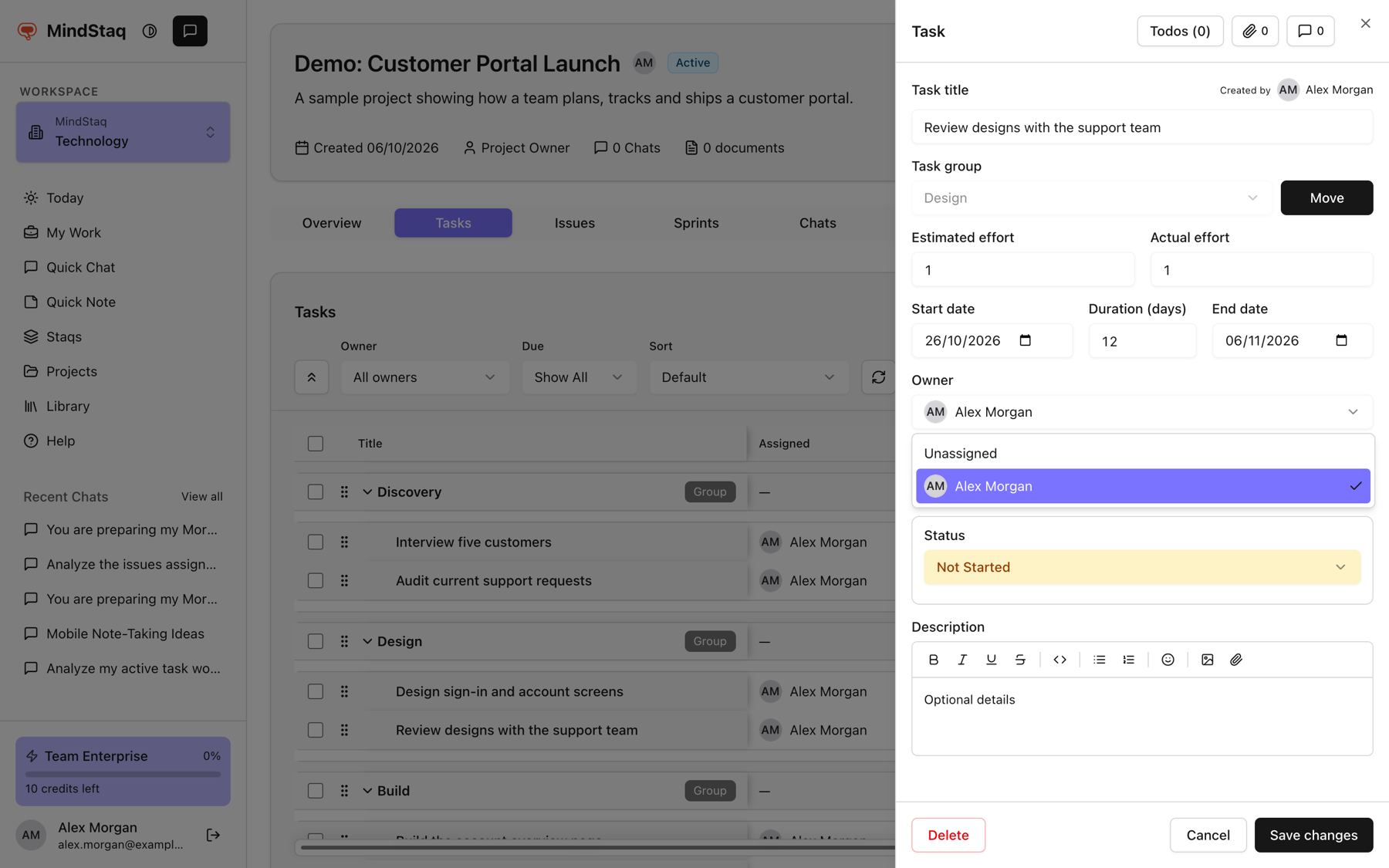
Set the owner. Choose a person under Owner. The list contains the project's members. The default is Unassigned.
-
Save. Choose Save changes.
-
Assign many at once. Select several rows in the list, then use the bulk actions to assign an owner, change status, or change priority.
-
Delegate a group. Make someone the Owner of a task group. They can then add, edit, reorder, and delete tasks inside that group, including nested groups.
Expected result
The owner sees the item in My Work, and can update its status. The item no longer shows as Unassigned.
Tips
- A task or issue needs an owner before its status can move to In Progress or Completed (tasks) or In Progress, Resolved, or Closed (issues).
- A task's owner can change the task's status and edit it. The owner of the task group above it can also edit it and change its dates.
- Issues also have a reviewer. Reviewers can edit the issue and see it in My Work. The issue panel does not show a reviewer field today; the assistant can set or clear a reviewer when you ask it to update an issue.
- You can ask the assistant to assign or reassign task owners in bulk from a chat in the project. See Turn an answer into work.
Troubleshooting
- The owner list is empty or missing someone: only project members can be owners. Add them first.
- I cannot change an owner: you need to be a Project Owner, Project Manager, or the owner of the task group. See Project roles.
- A task is stuck at Not Started: set an owner, then change the status.
Related guides
- Create task groups and tasksBreak a project into task groups and tasks, with owners, priorities, and dates.
- Track issues, risks, and blockersLog what is going wrong or at risk in a project, assign it, and follow it to resolution.
- Understand Project Owner, Project Manager, and Team Member rolesSee what each project role can see and change, and how task group owners and issue reviewers get extra rights.
- Add people to a projectAdd workspace members to a project, change their role, or remove them.
- Use My Work as the Today command centerSee everything on your plate in one feed, spot what needs attention, and decide what goes onto Today.
Email [email protected] and tell us what you were trying to do.
Email supportSpotted a mistake or something out of date? Report a problem with this guide. No email app? Write to [email protected] and name this guide.