Plan your week with the Day Planner
Use Plan my day to spread your work across the week, adjust the suggestion, and apply it to your plan.
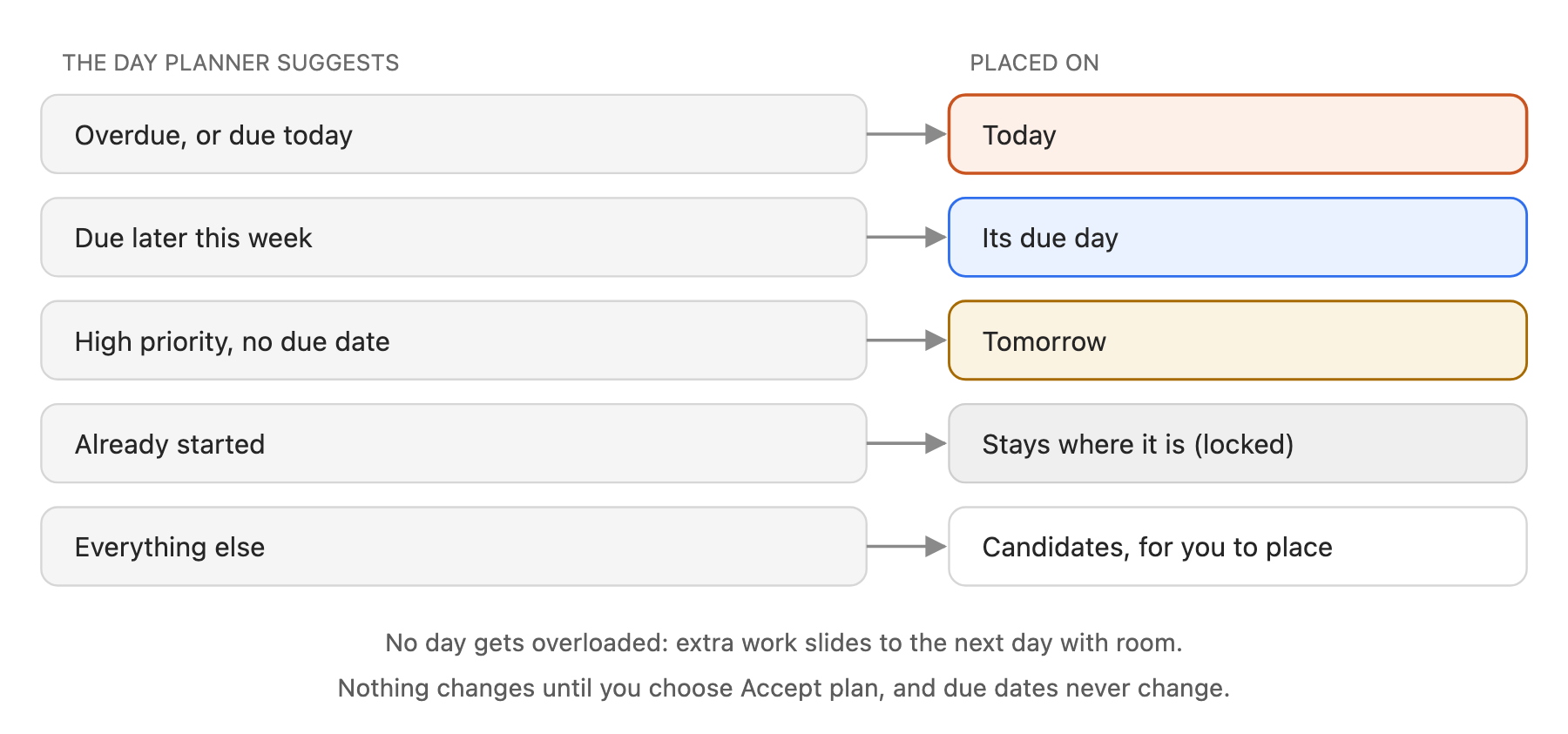
The Day Planner suggests which day of the week to do each piece of work, and lets you move things around before you apply it.
What you need
- Tasks, issues or todos assigned to you in the current workspace.
Steps
-
Open the planner. On Today, choose Plan my day. It is at the top of the page and on the Calendar tab.
-
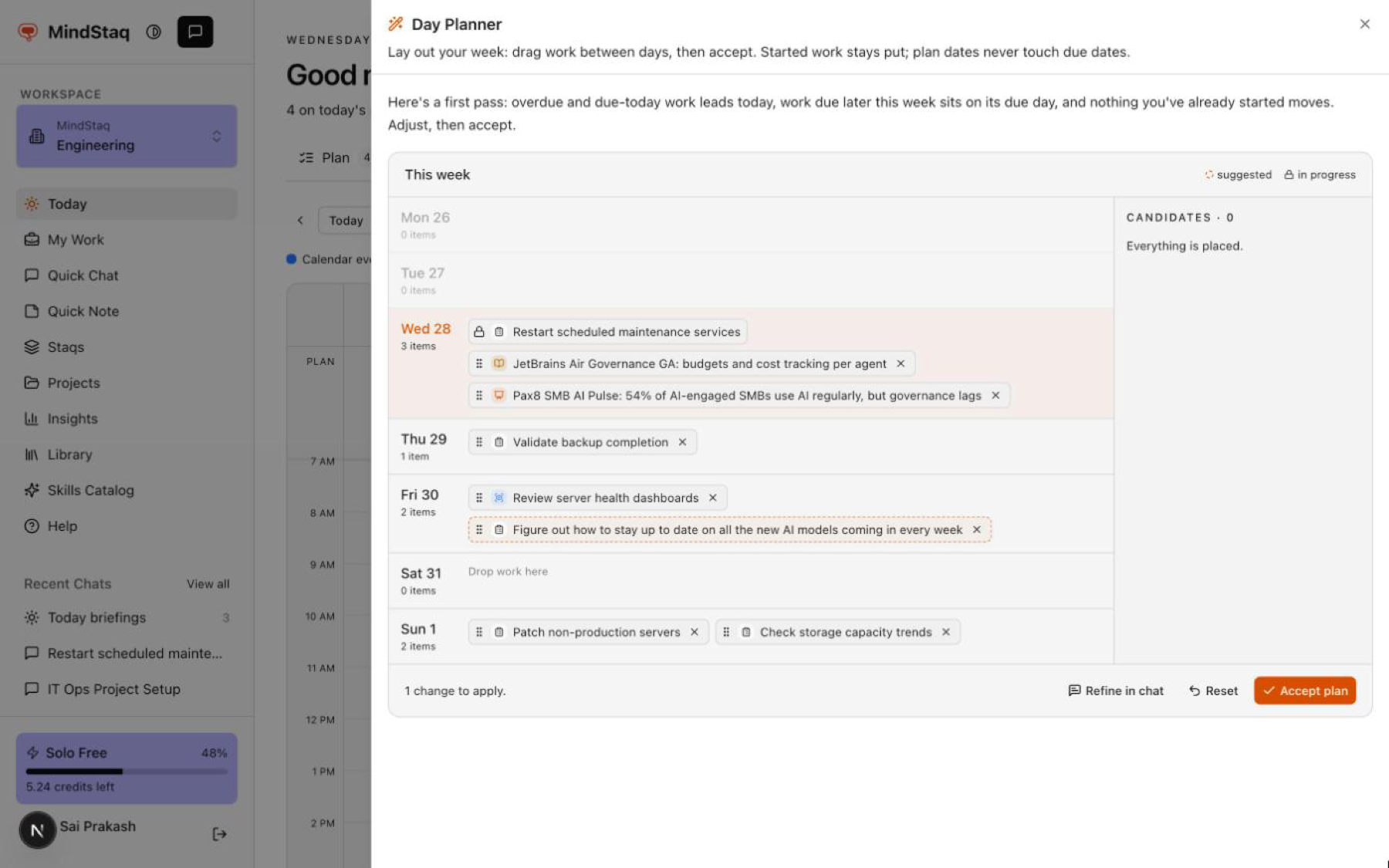
Review the suggestion. The Day Planner shows your week, one row per day, with how many items each day has. Work it suggests moving has a dashed outline. Work you already started shows a lock and stays put.
-
Check the candidates. Candidates on the right lists work that is not on a day yet, grouped as Overdue · needs rescheduling, Due this week, To Do inbox and My Work.
-
Move work. Drag an item onto a day, or choose a day on an item in Candidates. To take an item off the week, drag it back to Candidates or choose the × on it.
-
Apply it. The footer shows how many changes you made. Choose Accept plan to apply them, or Reset to start again.
Expected result
Work placed on today joins Today's plan. Work placed on a later day comes onto Today's plan on that day, and you can see it on the Calendar tab in the meantime. Due dates do not change.
Tips
- The planner never moves work you already started. To move it, tell the assistant in chat.
- Choose Refine in chat to continue in today's briefing chat. The assistant shows the same planner there. Drag items or describe changes in the message box, then accept.
- The suggestion spreads work so that no single day is overloaded, and leaves room for more on today.
Troubleshooting
- Accept plan says "Nothing to change": you have not moved anything. Your current plan already matches.
- An item I expected is not in the planner: it may be completed, parked, or assigned to someone else. The planner shows only your own open work in this workspace.
Related guides
- Plan your day on TodayUse the Plan tab on Today to see what you are working on, what is planned for today, and what to pick up next.
- See your week on the Calendar tabUse the Calendar tab on Today to see your meetings, the work you planned and your due dates side by side.
- How work moves between To Do, Today and My WorkUnderstand what belongs in your To Do list, on Today's plan and in My Work, and how an item moves from one to the next.
- Set up your Today agentChoose what your Today agent watches, run your daily briefing, and change its setup later.
Email [email protected] and tell us what you were trying to do.
Email supportSpotted a mistake or something out of date? Report a problem with this guide. No email app? Write to [email protected] and name this guide.