How work moves between To Do, Today and My Work
Understand what belongs in your To Do list, on Today's plan and in My Work, and how an item moves from one to the next.
AvailableLast reviewed 2026-10-28
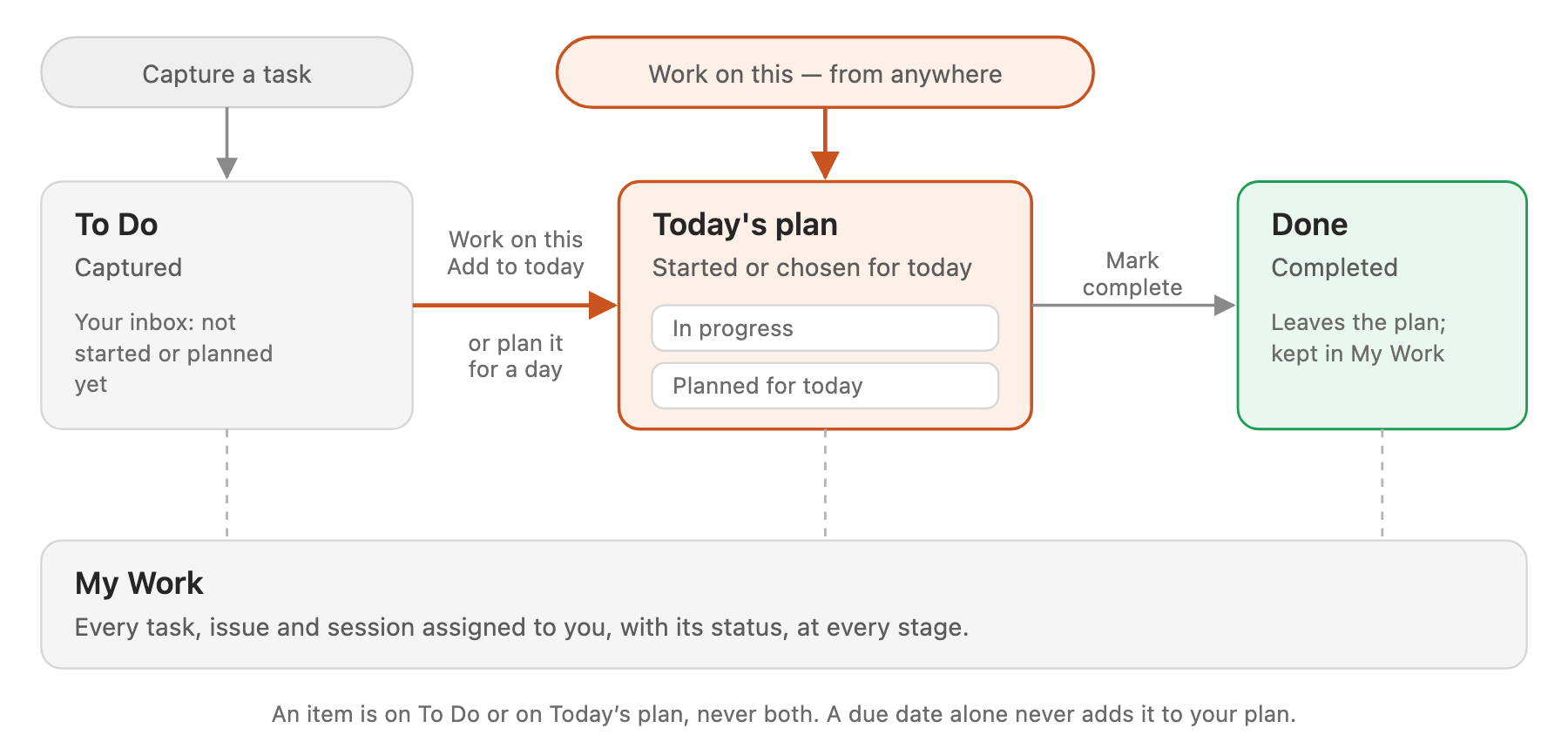
Every piece of work you own moves from captured, to started, to done, and each stage has one home in MindStaq.
What you need
- Access to a workspace. Each list shows your own work in the workspace you are in.
The three places
| Place | What it holds | Where you see it |
|---|---|---|
| To Do | Personal tasks you captured but have not started or planned yet. It is your inbox. | The To Do card on Today and My Work |
| Today's plan | What you are committing to today: work you started and work you added or planned for today. | The Plan tab on Today |
| My Work | Everything assigned to you, with its status: tasks, issues and work sessions, from every project. | My Work in the sidebar |
Steps
- Capture. Type a title in the box at the top of the To Do card and press Enter. The task waits in To Do until you decide what to do with it.
- Commit to it today. Choose Add to today on a To Do row, a suggestion or a briefing item, or Pin to Today on a row in My Work. The item leaves To Do and joins Planned for today on Today's plan.
- Start it. Choose Work on this anywhere: in To Do, My Work, Today, a project or your briefing. A work session opens, and the item is added to Today's plan under In progress. You do not need to add it to today first.
- Plan it for later. Choose Plan for tomorrow or Plan for next week on a plan row, or use the Day Planner. The item leaves To Do and comes back onto Today's plan on that day.
- Finish it. Mark the task complete. It leaves Today's plan. In My Work, turn on Show completed under the Tasks filter to see finished tasks.
Expected result
An item is in exactly one of To Do or Today's plan at a time, and My Work always shows it with its current status. When you start work on a To Do item, the To Do card says how many started items moved to today's plan, so nothing seems to vanish.
Tips
- Starting work adds an item to your plan only the first time. Choosing Resume later never adds it again, so an item you removed from your plan stays off it.
- Your plan is personal. Adding an item to today or planning it for a day never changes its due date, and teammates do not see your plan.
- A due date alone never puts work on your plan. Work that is due today and not on your plan appears under Suggested for today.
- Your Today briefing only makes suggestions. Nothing from it joins your plan until you act on it. See Read your Today briefing.
Troubleshooting
- An item disappeared from my To Do list: you started it, added it to today, planned it for a day, or completed it. Look on the Plan tab of Today, or under Tomorrow and Next week there.
- Something I started is not on my plan: you may have removed it from your plan after starting it. Choose Pin to Today on its row in My Work to bring it back.
- A task assigned to me is missing from To Do: To Do holds only your personal captured tasks. Project tasks assigned to you are in My Work.
Related guides
- Plan your day on TodayUse the Plan tab on Today to see what you are working on, what is planned for today, and what to pick up next.
- Use My Work as the Today command centerSee everything on your plate in one feed, spot what needs attention, and decide what goes onto Today.
- Read your Today briefingWork through the Briefing tab on Today, confirm upcoming events, act on what needs you, and read your topic digests.
- Plan your week with the Day PlannerUse Plan my day to spread your work across the week, adjust the suggestion, and apply it to your plan.
- Add project, task, issue, note, or file contextGive a session the right background by starting it from a project, staq, task, or issue, or by attaching files.
Still need help?
Email [email protected] and tell us what you were trying to do.
Email supportSpotted a mistake or something out of date? Report a problem with this guide. No email app? Write to [email protected] and name this guide.