Read your Today briefing
Work through the Briefing tab on Today, confirm upcoming events, act on what needs you, and read your topic digests.
AvailableLast reviewed 2026-10-28
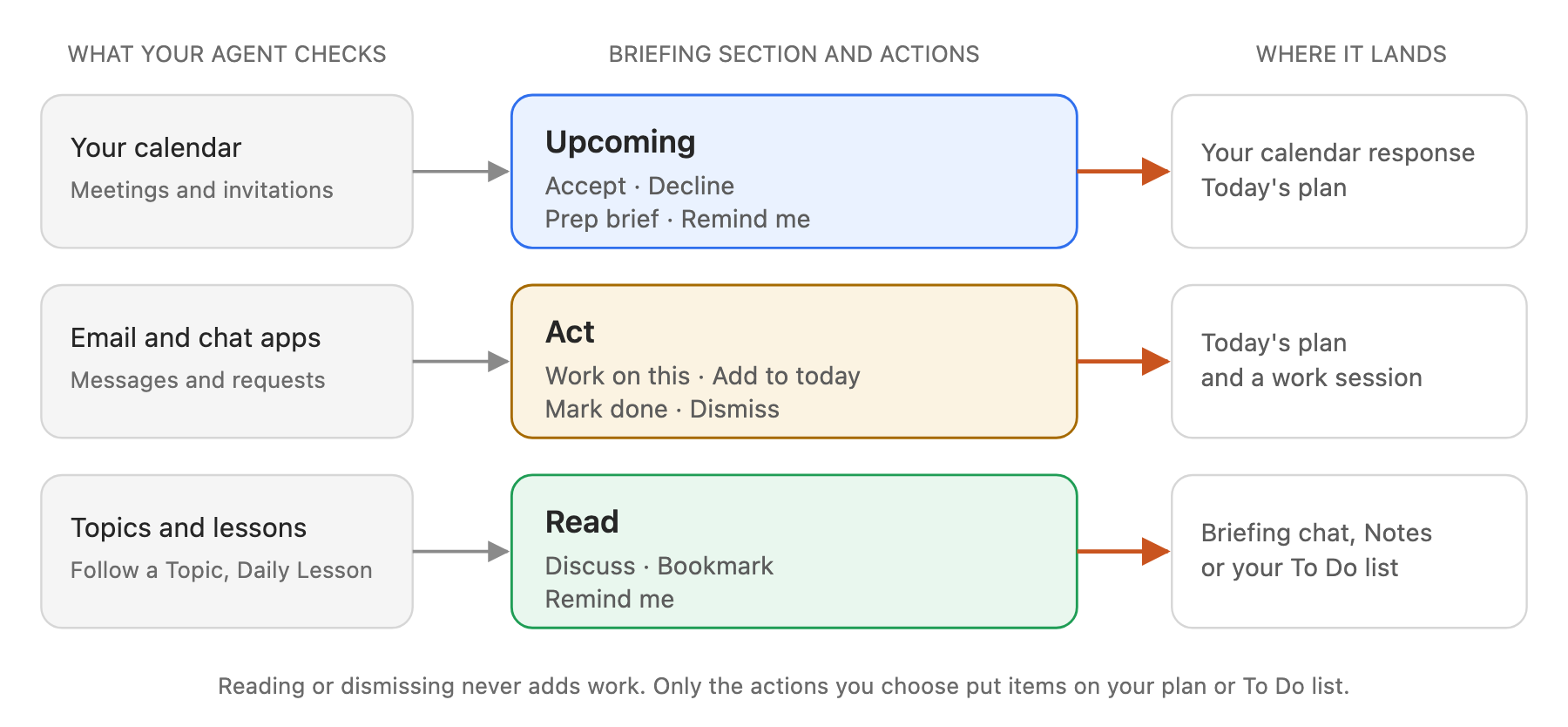
The Briefing tab on Today sorts what your Today agent found into three sections, so you can confirm, act or read in a few minutes.
What you need
- A Today agent that has run at least once today. See Set up your Today agent.
Steps
- Open the briefing. On Today, choose the Briefing tab. The top line says Briefing ready and when it ran, with a count of events, actions and digests. Select a count to jump to that section. Sources shows which apps the items came from.
- Confirm what's coming up. Upcoming lists your events for today, tomorrow and this week. Events you have not answered are marked Unconfirmed.
- Choose Accept or Decline. MindStaq shows what will change in your calendar and that the organizer will be notified. Choose Confirm to send it, or Cancel.
- Choose Prep brief to start a work session that prepares you for the meeting. A "Prep" task is added to Today's plan.
- Choose Remind me to put a reminder for the meeting on Today's plan.
- Use the link at the end of the row to join the call or open the event in your calendar.
- Act on what needs you. Act groups items by what they ask of you, such as Reply, Review, Approve or Follow up, then by app.
- Choose Work on this to create a task, add it to Today's plan and open a work session about it.
- Choose Add to today to create the task and add it to your plan without starting it.
- Choose Mark done if you already handled it, or Dismiss if it does not need you.
- Read your digests. Read has one card per topic you follow, labelled Topic watch or Daily lesson. Each card shows a headline, why it matters and its sources. Choose Read all to expand it, and Collapse to close it.
- Choose Discuss to open today's briefing chat with a question about the digest ready to send.
- Choose Bookmark to save the digest to your notes, with its sources as links.
- Choose Remind me to add a reading task to your To Do list for later.
- Change your mind. After you mark an item done or dismiss it, choose Undo on the row to bring it back.
Expected result
Items you act on show On today's plan or move out of the way. When everything is handled, the top line says Briefing handled.
Tips
- Nothing from the briefing joins your plan until you choose an action. Reading a digest never adds work.
- With Google Calendar or Outlook connected, Upcoming shows your live calendar. Without one, it shows the events the agent found in its last run.
- Bookmarked digests are in your notes. See Use notes and documents.
Troubleshooting
- Accept and Decline don't appear: they show only for events you have not answered yet, and only when your calendar is connected.
- A briefing item is missing: it may have been dismissed or marked done. Handled items stay in the list with Undo.
- The briefing is from earlier today: choose Refresh briefing at the top of Today to run it again.
Related guides
- Set up your Today agentChoose what your Today agent watches, run your daily briefing, and change its setup later.
- Plan your day on TodayUse the Plan tab on Today to see what you are working on, what is planned for today, and what to pick up next.
- How work moves between To Do, Today and My WorkUnderstand what belongs in your To Do list, on Today's plan and in My Work, and how an item moves from one to the next.
- See your week on the Calendar tabUse the Calendar tab on Today to see your meetings, the work you planned and your due dates side by side.
- Use notes and documents as living work assetsCapture notes, create documents and presentations, and keep AI-written output attached to your projects.
Still need help?
Email [email protected] and tell us what you were trying to do.
Email supportSpotted a mistake or something out of date? Report a problem with this guide. No email app? Write to [email protected] and name this guide.