Set up your Today agent
Choose what your Today agent watches, run your daily briefing, and change its setup later.
Your Today agent checks the sources you choose and brings what needs you into one briefing, on the Briefing tab of Today.
What you need
- Access to a workspace.
- To watch your email, calendar or chat apps, connect them first. See Integrations and availability.
What it can watch
| Source | What you get |
|---|---|
| Watch an App | Events to confirm from your calendar, and things to act on from your email or chat apps, such as messages to reply to. |
| Follow a Topic | One short digest per topic from the web, with sources. |
| Daily Lesson | One lesson a day on a subject you want to learn. |
Steps
-
Start setup. On Today, open the Briefing tab and choose Set up my Today agent. If you started setup earlier, the button says Finish setting up.
-
Answer a few questions. A short setup conversation asks about your role and goals, which apps to connect, and what to watch. The panel beside it shows what your agent will watch.
-
Turn it on. When setup finishes, choose Run my first briefing, or Go to Today to run it later. You can leave setup at any time with Skip for now.
-
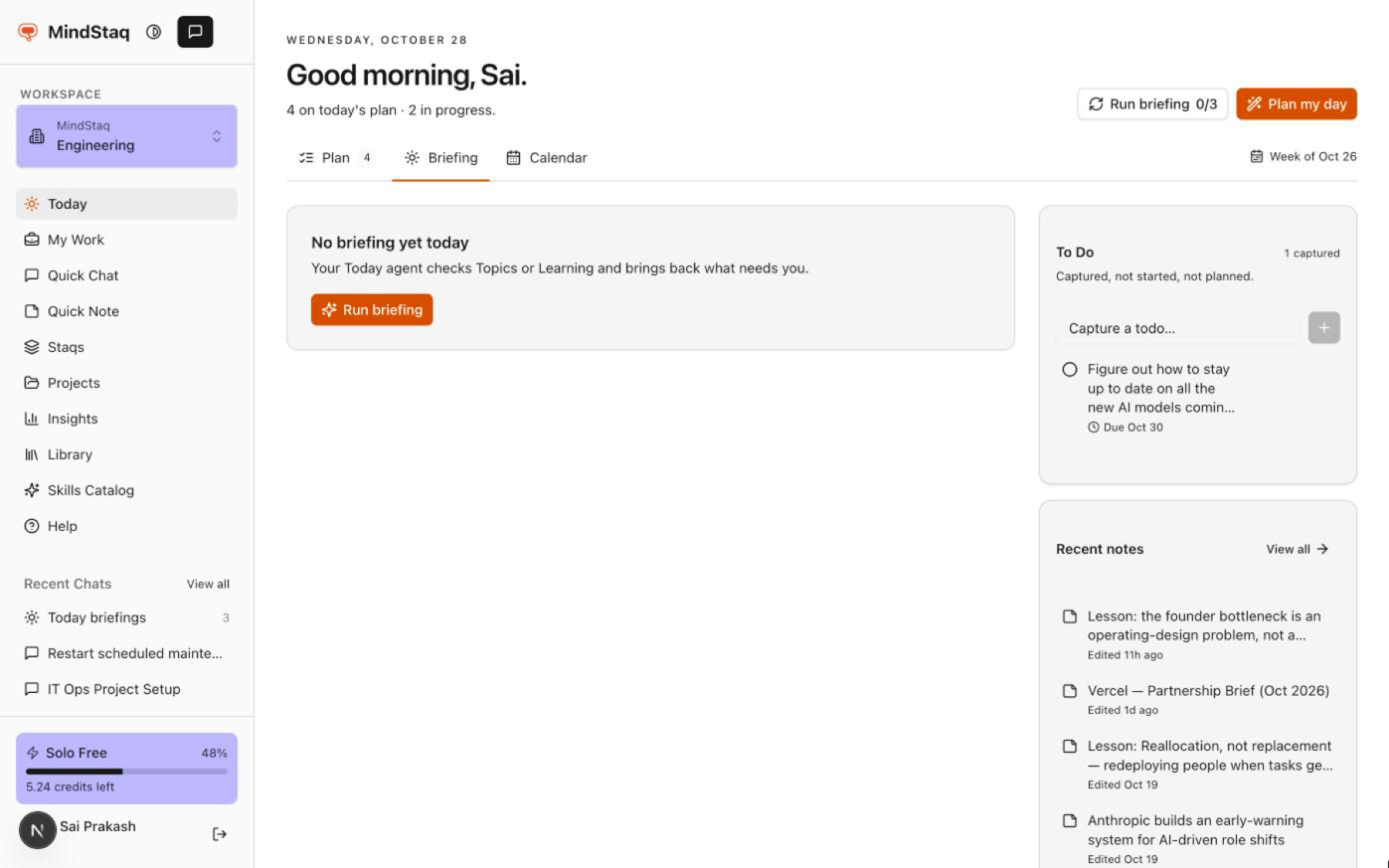
Run it again. Choose Run briefing at the top of Today, or on the Briefing tab before the day's first run. After a briefing is ready, the button says Refresh briefing. The button shows how many runs you have used today.
-
Read the results. The agent works in a chat. When it finishes, the Briefing tab fills in. See Read your Today briefing.
Expected result
The Briefing tab shows Briefing ready with the time it ran, followed by your upcoming events, things to act on and digests to read.
Tips
- All of a day's runs use the same briefing chat, so later runs add to it instead of starting a new one.
- To change what the agent watches, go to Account, open the Profile tab, and choose Review your Today agent.
- The Free plan includes three briefing runs a day. Paid plans include more. See Plans, credits and billing.
- The briefing only suggests. Nothing joins your plan until you act on it.
Troubleshooting
- Run briefing is greyed out: you have used today's runs. Hover over the button to see your plan's limit.
- The Briefing tab says a run didn't finish: choose Open chat to see what happened, then run the briefing again.
- No calendar events appear: connect Google Calendar or Outlook under Account, Connectors, then run the briefing again.
- The briefing says nothing needs you: your sources had nothing new. Try again later, or add a source by reviewing your Today agent.
Related guides
- Read your Today briefingWork through the Briefing tab on Today, confirm upcoming events, act on what needs you, and read your topic digests.
- Connect tools and appsSee which tools you can connect to MindStaq, what is available today, and how to connect or disconnect one.
- Plan your day on TodayUse the Plan tab on Today to see what you are working on, what is planned for today, and what to pick up next.
- How work moves between To Do, Today and My WorkUnderstand what belongs in your To Do list, on Today's plan and in My Work, and how an item moves from one to the next.
- Plans, credits, and billingFind your plan, see your credit usage and billing cycle, and know who can manage billing.
Email [email protected] and tell us what you were trying to do.
Email supportSpotted a mistake or something out of date? Report a problem with this guide. No email app? Write to [email protected] and name this guide.