See your week on the Calendar tab
Use the Calendar tab on Today to see your meetings, the work you planned and your due dates side by side.
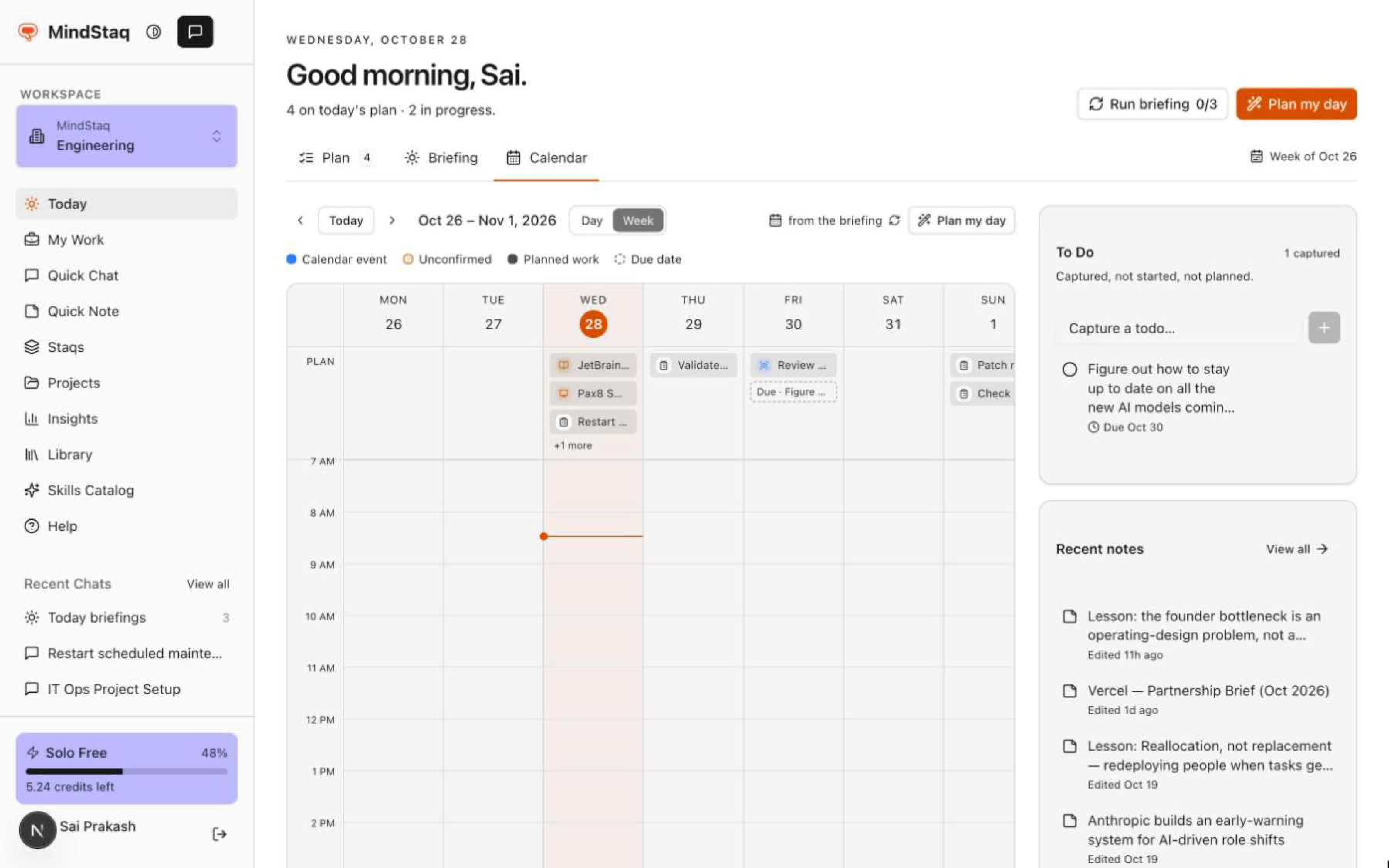
The Calendar tab on Today shows your meetings, the work you planned for each day and your due dates on one week view.
What you need
- For a live view of your meetings, Google Calendar or Outlook connected under Account, Connectors. See Integrations and availability.
Steps
-
Open the calendar. On Today, choose the Calendar tab. It opens on the current week.
-
Switch between day and week. Use Day and Week at the top. Use the arrows to move a week back or forward, and Today to return to the current week.
-
Read the view. The legend explains each mark:
- Calendar event: a meeting from your calendar. Events you have not answered are marked Unconfirmed.
- Planned work: tasks, issues and chats you planned for that day.
- Due date: work that is due that day and not planned yet.
-
Check where events come from. Live at the top right means events come from your connected calendar. Select it to refresh. Without a connected calendar it says from the briefing, and events come from your latest Today briefing.
-
Plan the week. Choose Plan my day to open the Day Planner.
Expected result
You can see at a glance which days are full of meetings, where your planned work sits, and what is due.
Tips
- To answer an invitation, use Accept or Decline in the Upcoming section of the Briefing tab. See Read your Today briefing.
- Due dates and plan dates are separate. Planning work for a day never changes its due date.
Troubleshooting
- The calendar says "No calendar connected": connect Google Calendar or Outlook under Account, Connectors for a live view.
- A meeting I just added is missing: select Live to refresh.
- A task appears on its due date, not the day I planned it: check that you planned it. Work you planned shows on its planned day only.
Related guides
- Plan your day on TodayUse the Plan tab on Today to see what you are working on, what is planned for today, and what to pick up next.
- Plan your week with the Day PlannerUse Plan my day to spread your work across the week, adjust the suggestion, and apply it to your plan.
- Read your Today briefingWork through the Briefing tab on Today, confirm upcoming events, act on what needs you, and read your topic digests.
- Connect tools and appsSee which tools you can connect to MindStaq, what is available today, and how to connect or disconnect one.
Email [email protected] and tell us what you were trying to do.
Email supportSpotted a mistake or something out of date? Report a problem with this guide. No email app? Write to [email protected] and name this guide.